Get the truth about your network and cloud environment with IP Fabric’s automated network assurance platform.
IP Fabric automates the creation of a vendor-agnostic, end-to-end view of all devices, states, paths, and dependencies, which provides essential context and deep understanding to reveal unknown risks, opportunities, and efficiencies. Understand how this network intelligence can be easily shared with teams who need it, or seamlessly integrated into workflows, enriching existing tooling and platforms with essential details you can’t get anywhere else.
In this free trial instance (100 managed network devices, for 30 days), you’ll see how automated network assurance works to discover your entire network, analyze and normalize this data, and then visualize this as network intelligence for practical application and timely insights. Throughout, we’ll share examples of how this helps enterprises assure the security and stability of digital services, speed migrations and transformation, all while cutting IT costs.
We’ll guide you through fundamental use cases that bring massive value, and introduce you to some advanced topics that will spark some ideas around the art of the possible when you have your entire network at your fingertips.
We hope you enjoy this opportunity to explore IP Fabric at your own pace!
You can follow the guide through written chapters, or <5 minute videos, which will show examples of how to deploy, set up , and use IP Fabric.
“IP Fabric pulls the data that you need from every device in your network for quick analysis; it doesn't stop at letting you analyze the data easily, but allows you to plug it into your processes and workflow. That can be applied to anything - automation, troubleshooting, hardware refresh planning - and it gives you that contextualized insight into your network, both from a high level and down to the details.
It also gives teams without deep network knowledge the tools to understand how traffic flows through the network, and what may hinder that flow. For new engineers, their understanding of the network is massively accelerated, and they can get started with troubleshooting almost immediately."
- Martin Moucka, Senior Network Engineer, Red Hat
IP Fabric is a lightweight deployment, requiring a single Virtual Machine. IP Fabric is, in most cases, deployed as an on-premises solution, but we provide the flexibility to use some public cloud platforms too.
This free trial allows for a fully functional IP Fabric deployment that can interact with 100 network devices and is time-limited to 30 days. You can watch this 3 minute video to see the deployment and configuration process or use the written guide below.
You can get the current VMDK, OVA, or QCOW2 release at https://releases.ipfabric.io/current/. The credentials to access the images are in the email you received.
Note: VMware ESXi and vSphere are the recommended (and fully supported) hypervisors; however, IP Fabric can be deployed on other hypervisors (with limited support).
So, now that your IP Fabric instance is deployed and correctly configured, it’s time to discover your entire network automatically and create your first full network snapshot.
Note: Don't have a lab or network environment to discover, but still want to use this free trial? We've got some demo snapshots you can upload to the platform here, in place of discovery.
Note: IP Fabric accesses network infrastructure devices via CLI (command-line interface) using SSH or Telnet. All device interactions are recorded on the platform, and only “read-only” or “operator” group privilege level 1 credentials are required.
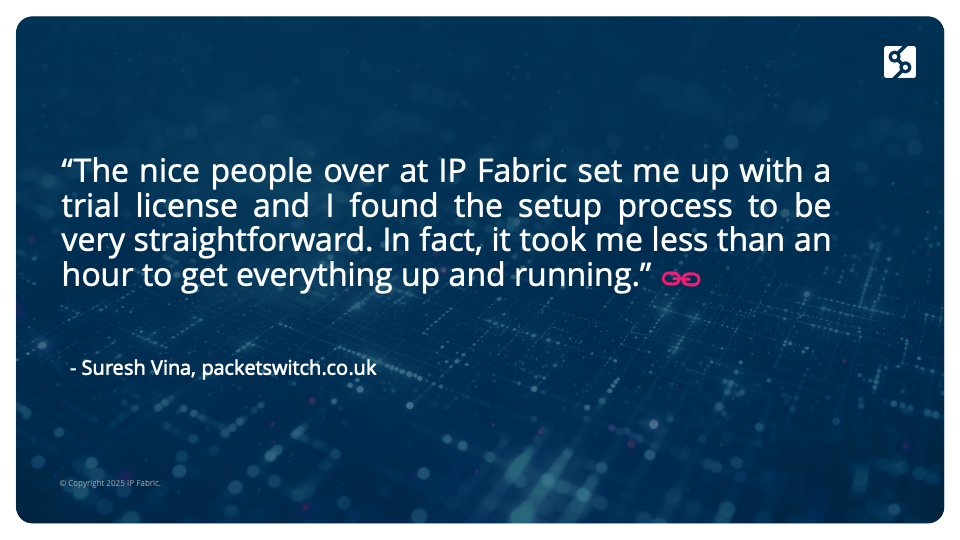
Check out the blog link in the image below by Network Engineer and blogger Suresh Vina. He tried out our free lab license with slightly different parameters than we have today, but his experience and insights remain valid.

You can join our community slack here to chat with fellow trial users, ask questions, and get ad-hoc support.
Although you'll use the Configuration Wizard to start your first network discovery, it's prudent to point out information surrounding and management of the discovery process.
You don't have to use the wizard for subsequent discovery snapshots, and you can take some manual action adjust and validate network discovery.
Go to Discovery Snapshot > New Snapshot > Start Discovery
Discovery will begin. You’ll be able to see the process of IP Fabric connecting to different devices in your environment. Key metrics shown in the Discovery Snapshot include

Accurate and complete discovery is central to network assurance, so we’ve included key information as guardrails against inaccuracy or incomplete discovery.
You’ll notice the Connectivity Report that details whether devices were successfully connected, and if not, it shows errors such as connectivity timeouts or authentication failures to help troubleshoot issues during discovery. The platform includes the CLI output for all errors, and you can easily filter your view on the Connectivity Report to see what’s important to you.
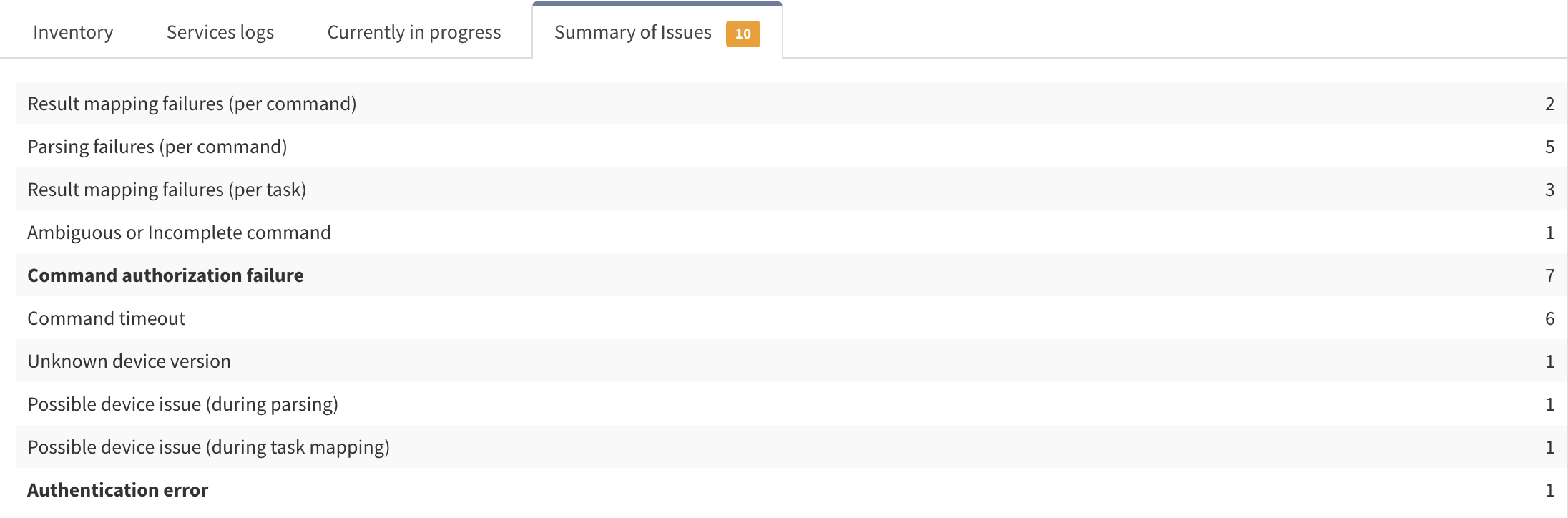
You can also find information about missing detail in IP Fabric in the Summary of Issues. You can then resolve these issues to ensure all devices, and all the information about the relevant devices, is properly discovered.
Discovery Snapshot > Summary of Issues:

More information on how to troubleshoot specific discovery issues can be found in our documentation here: Troubleshooting Discovery - IP Fabric Documentation Portal.
Tip: Security Use Case - Spot Rogue or Unmanaged Devices
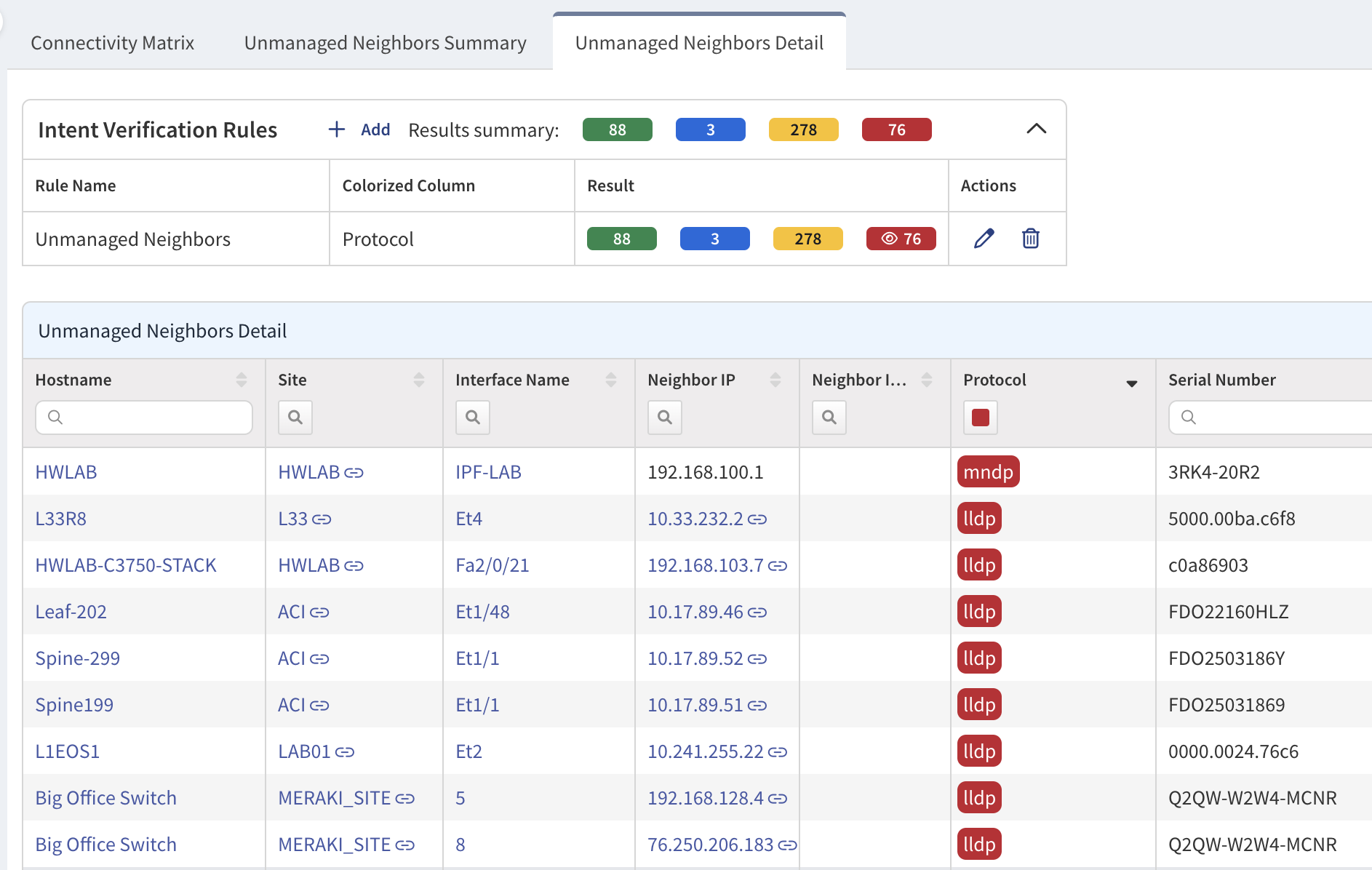
In the Connectivity Matrix, you’ll find the Unmanaged Neighbors Detail; these are devices that IP Fabric knows exist, but can’t log into, perhaps because of incorrectly configured devices or insufficient authorization privileges.
We’ve already applied an intent verification rule to this table, sorting unmanaged neighbors with BGP protocols in green, unmanaged neighbors with interior gateway protocols in yellow, and LLDP/CDP, direct but unmanaged neighbors, in red.
This is crucial information for network and security teams; from first Discovery, IP Fabric reveals what you potentially don’t know about your network.

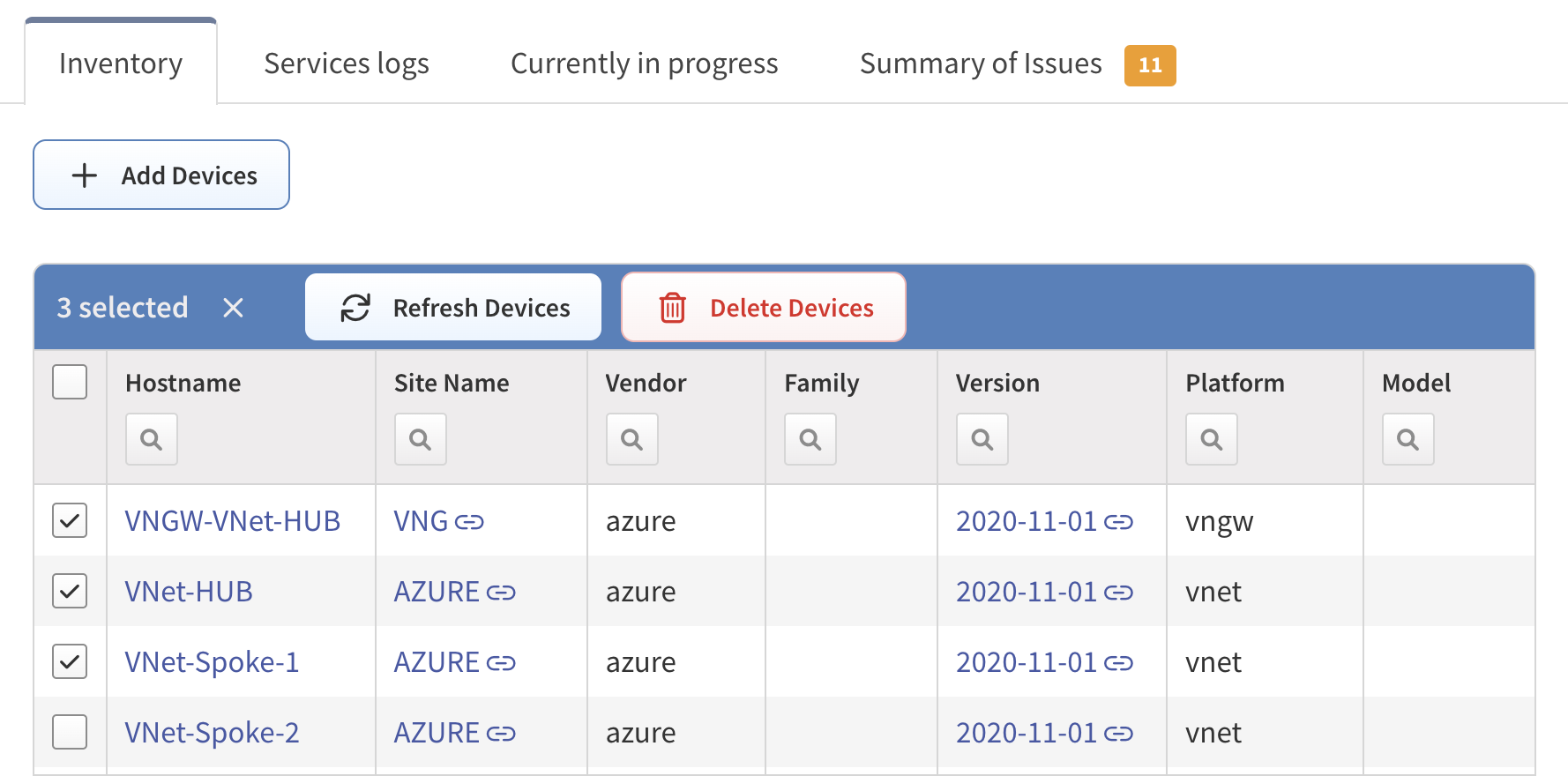
If a snapshot has already been created, but some devices have been left out due to connectivity or authentication errors, for example, you can manually add them to the network snapshot, so that they’ll be included in future network discoveries.
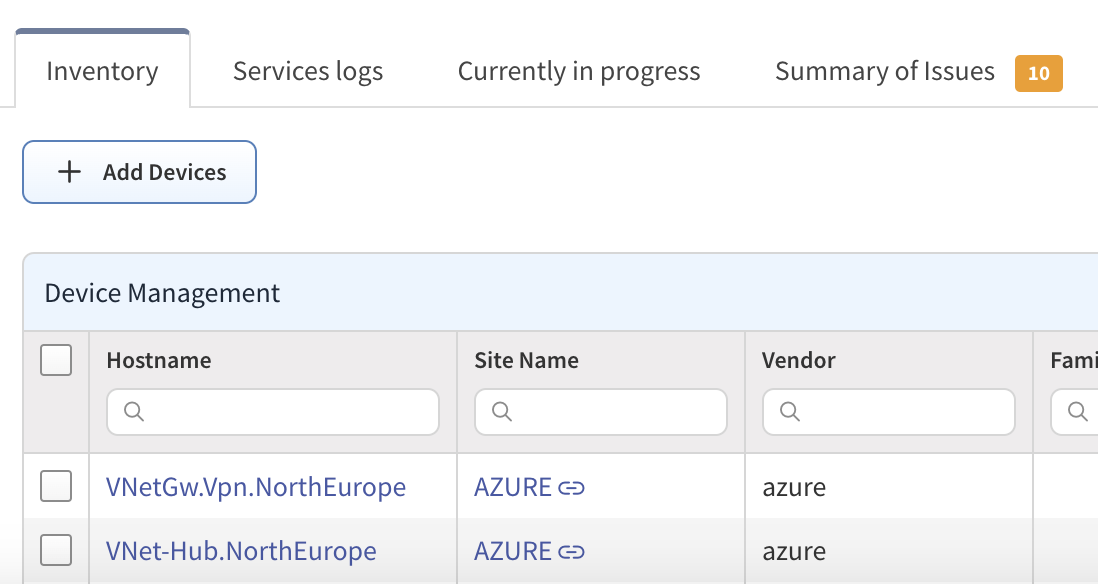
A new device can be added to an existing snapshot by clicking Add Devices. This action allows you to input a list of IP addresses or subnets for discovery and inclusion in the chosen snapshot. This feature proves useful when conducting a comprehensive network snapshot, but some devices faced connectivity issues that have since been resolved (e.g., incorrect AAA configuration, firewall rules, omission of a network seed, etc.).
Discovery Snapshot > Inventory > Add Devices:

Tweaks at this stage, if required, mean that you’ll have the digital twin of your network environment, representing a particular point in time, and including all configuration and state data, with all future discoveries.
This guide will walk you through the site separation process in IP Fabric, including manual and automatic methods.
When you first run a network discovery in IP Fabric, the platform gathers information about all connected devices. These devices will initially be marked as “unknown” in the Site column Inventory > Devices.
Organizing devices into sites ensures that your network structure is more manageable and accurately reflects your real-world setup.
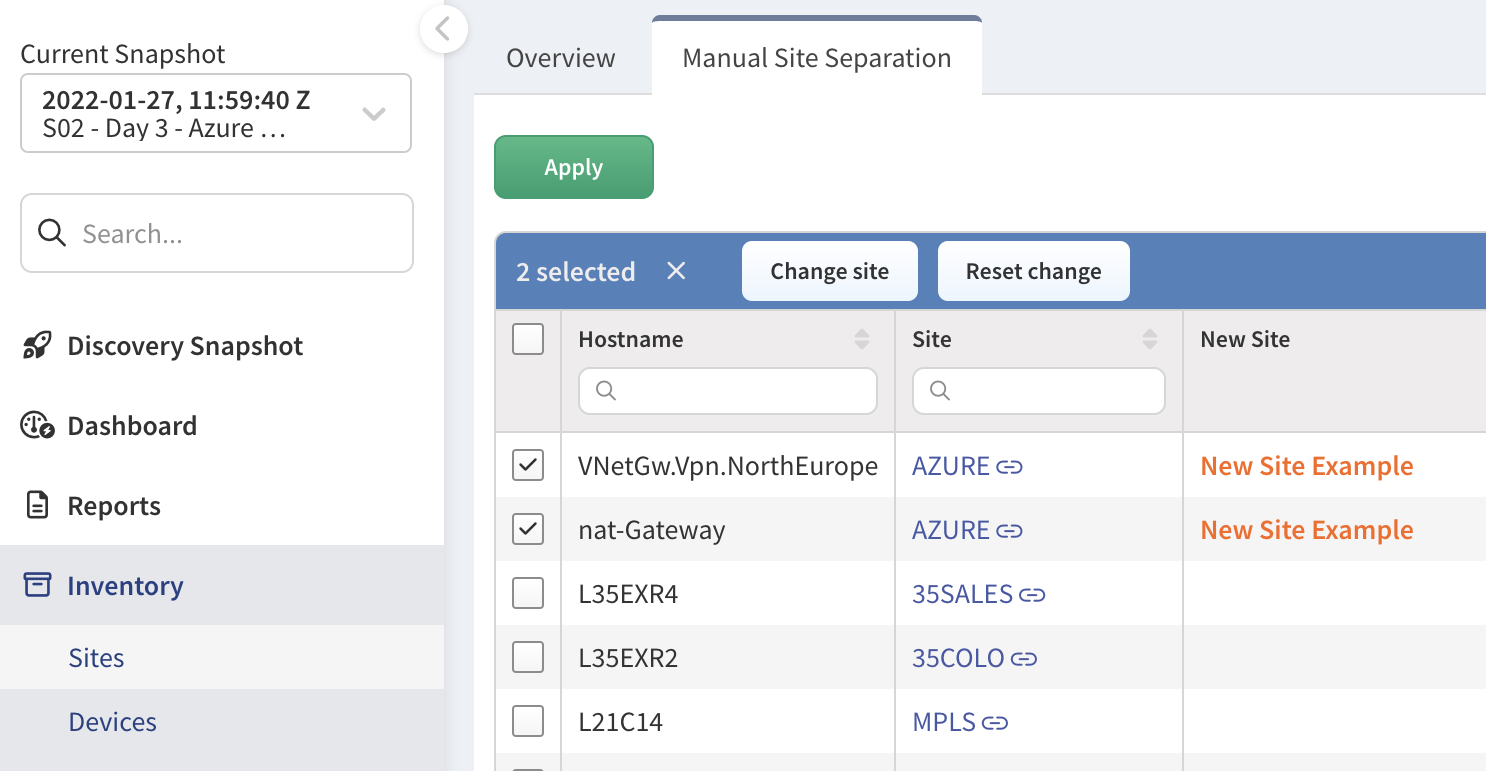
For your trial environment, manual separation is the recommended approach due to the smaller number of devices. Here’s how to do it:
Assigning Devices to a Site:
Note: You can apply changes for current snapshots only or for all future snapshots.

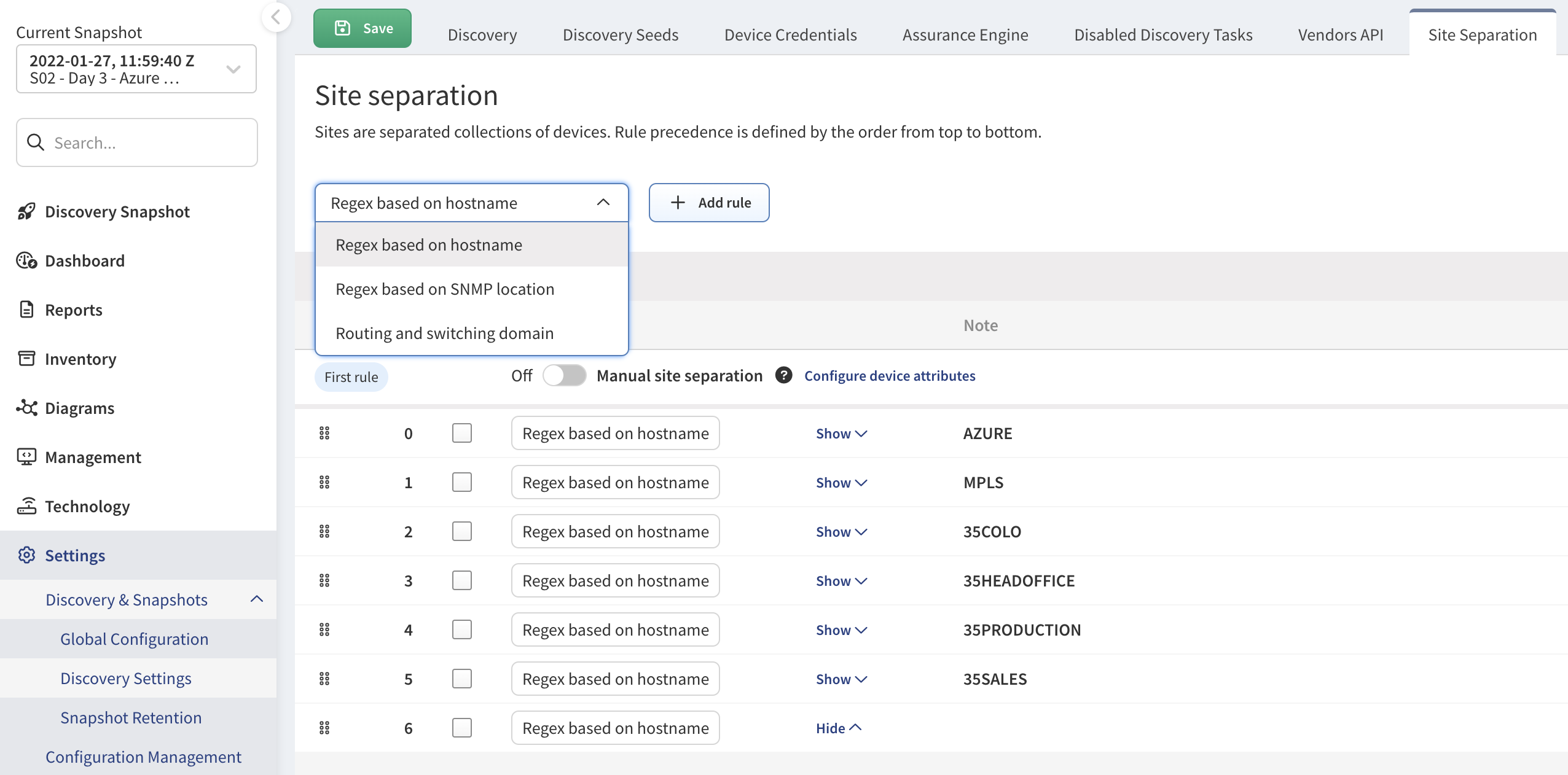
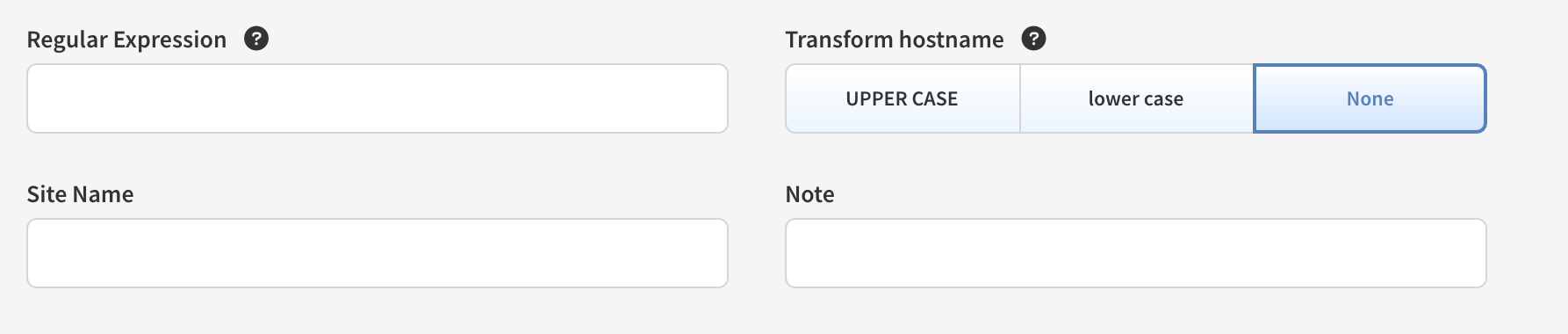
While manual separation is recommended for this free trial, IP Fabric also offers automatic site separation using Regular Expressions (Regex). This method is ideal for larger networks with well-structured device naming conventions, or you can use parameters like SNMP location or routing and switching domain.
Setting Up Automatic Site Separation:
Settings > Discovery & Snapshots > Discovery Settings > Site Separation

Tip: Hostname Transformation
To avoid issues with case sensitivity, enable the Transform Hostname option in IP Fabric’s settings. This ensures that site separation rules apply uniformly, regardless of how hostnames are formatted.

By organizing your network into sites you’ll gain a clearer view of your infrastructure and make network management easier as your environment grows
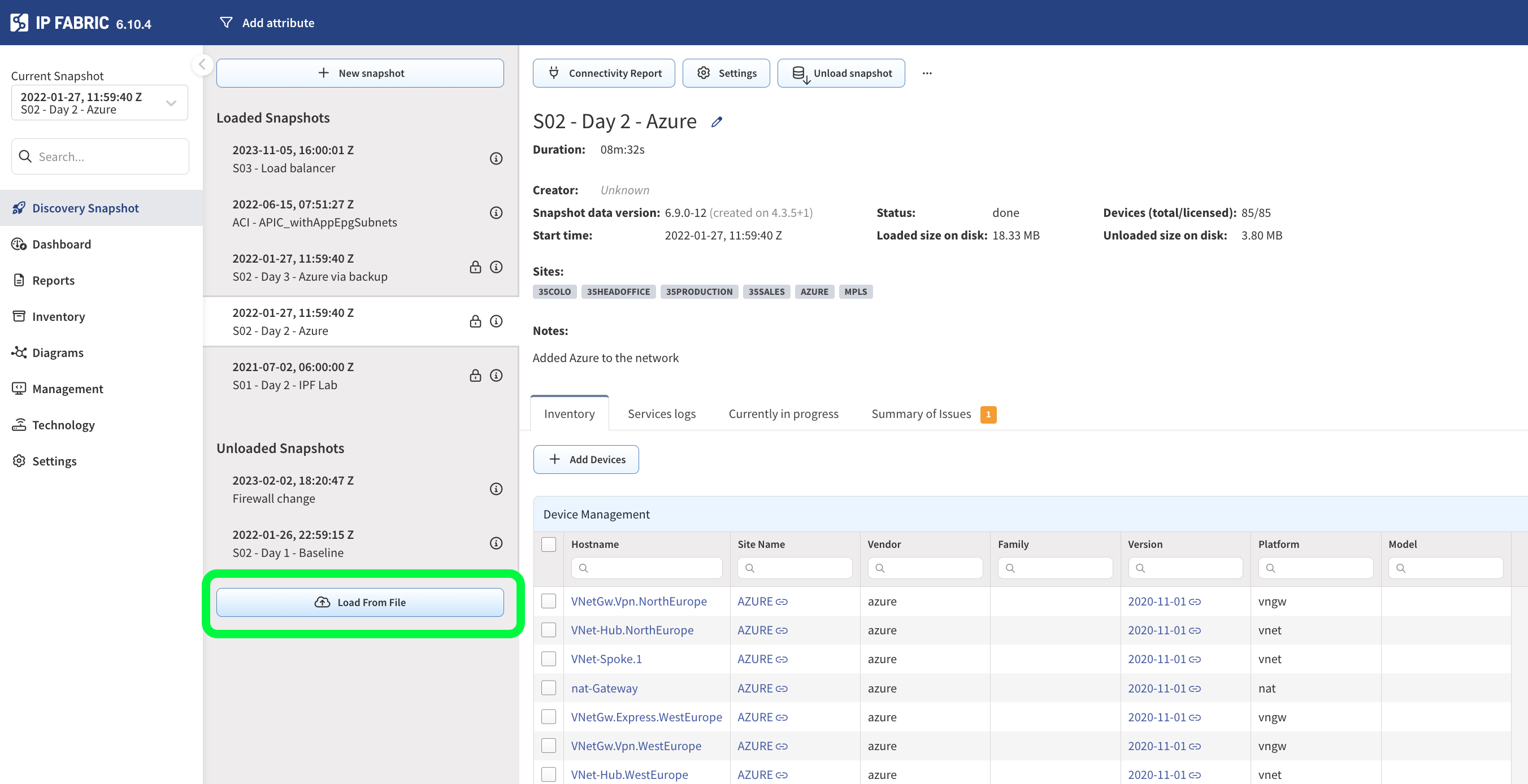
Use these demo snapshots if you don't have a lab or network environment you wish to use for this free trial. Click to download and upload in the IP Fabric Discovery Snapshot as shown below. They represent day-by-day change in a hybrid cloud environment:

Tables are a familiar and easily consumable way to understand the network data IP Fabric has discovered. Let’s review how to:
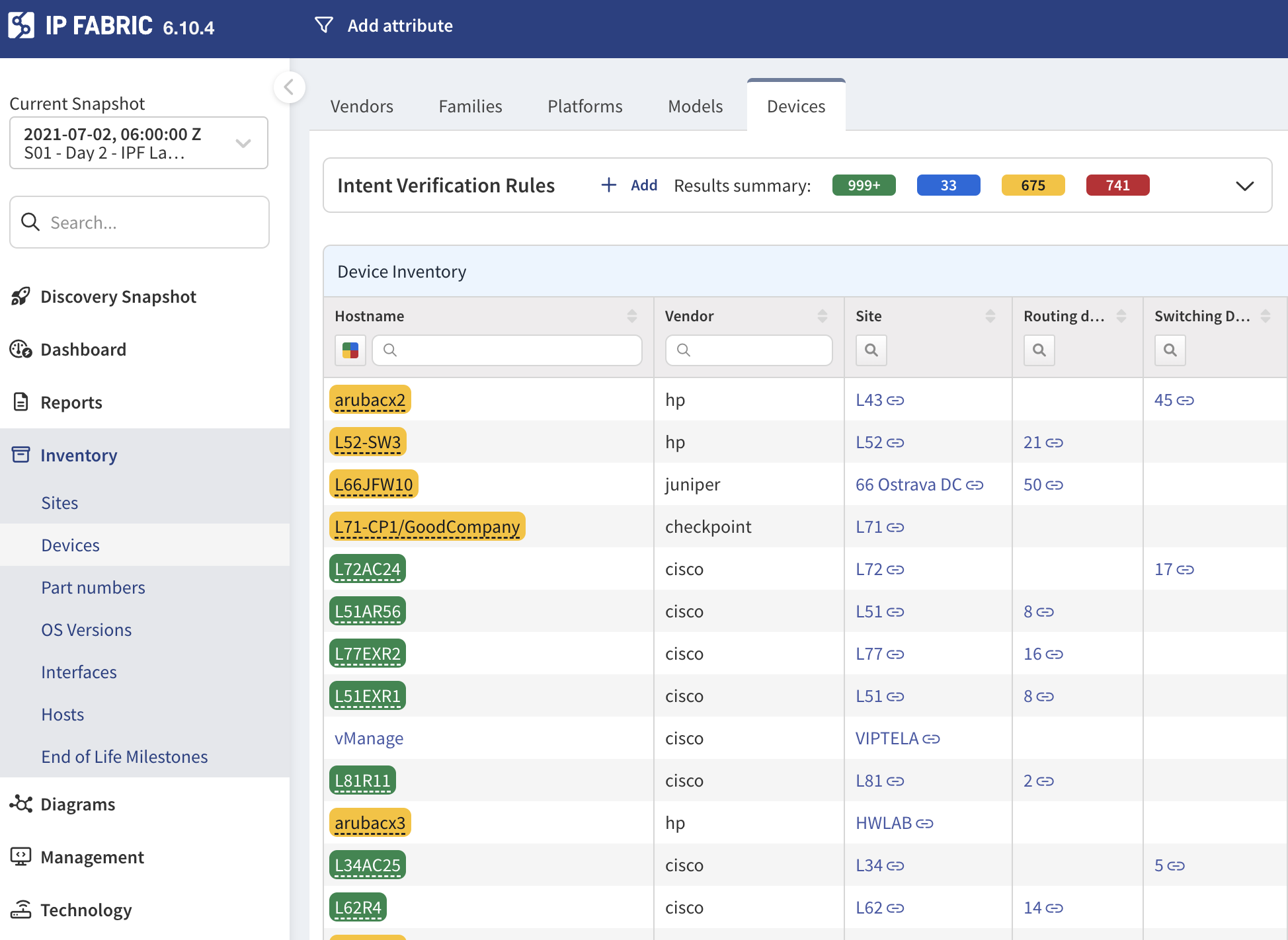
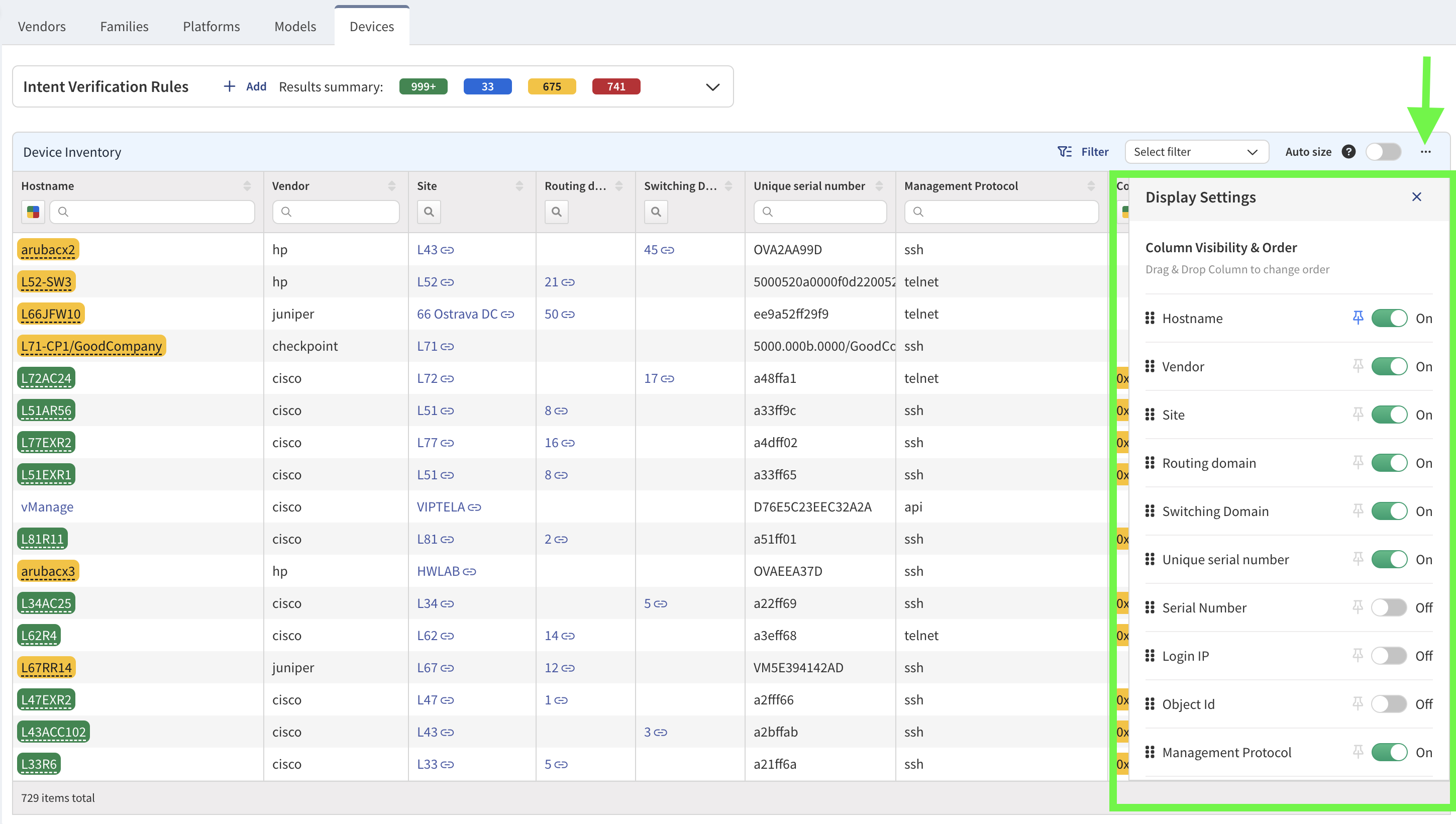
Once a discovery is completed, data is displayed in tables. Each table contains columns showing device information, making it easy to see what has been discovered. You can start with Inventory tables to get an overview of your network.
A simple and flexible tabular visualization of your network assets:

Modify the table by enabling or disabling columns to suit your needs. This helps you focus on specific details that are most relevant to you.

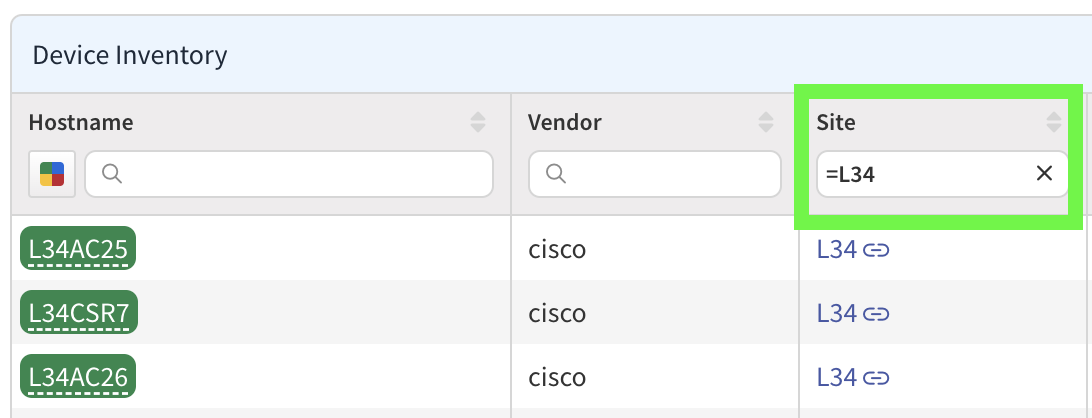
Use the search function to find specific devices or data by typing keywords (e.g., sites).
For advanced searches, you can apply filters using logical conditions like “host name contains” or “site =.”

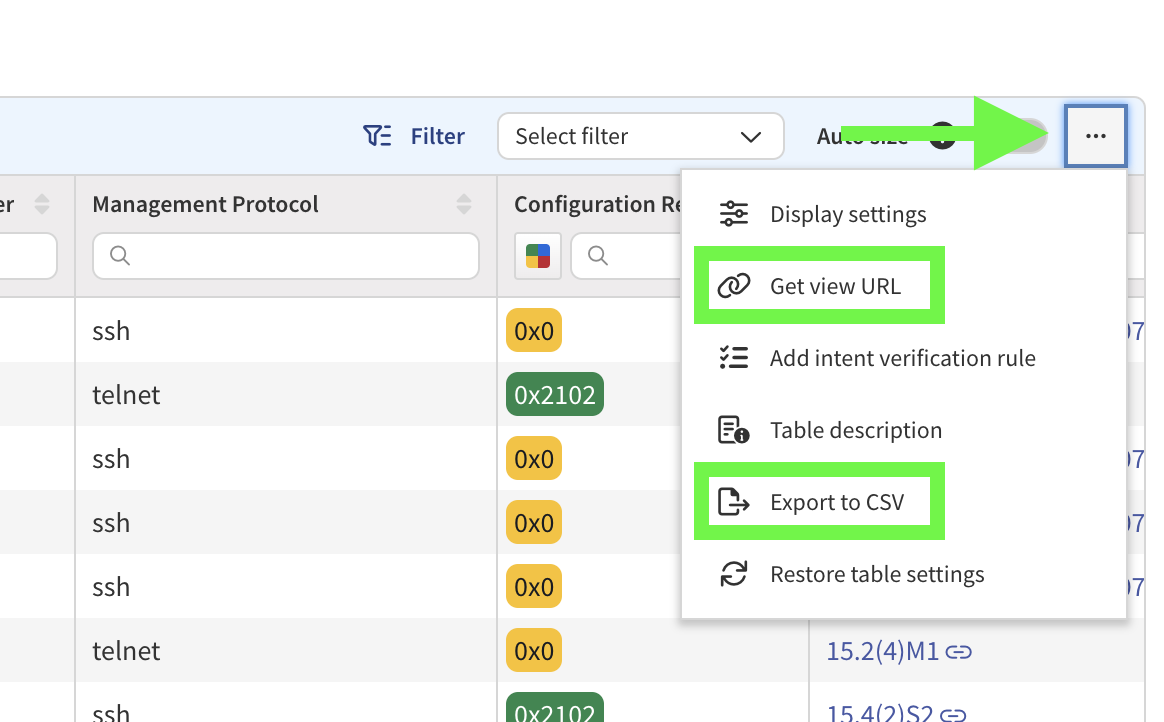
If you need to share the data with others, you can easily export the table to a CSV file.
Generate a shareable link (URL) for a specific view. Anyone with the link will see the exact table and data configuration you created, making collaboration smooth across platforms like Slack or Teams.

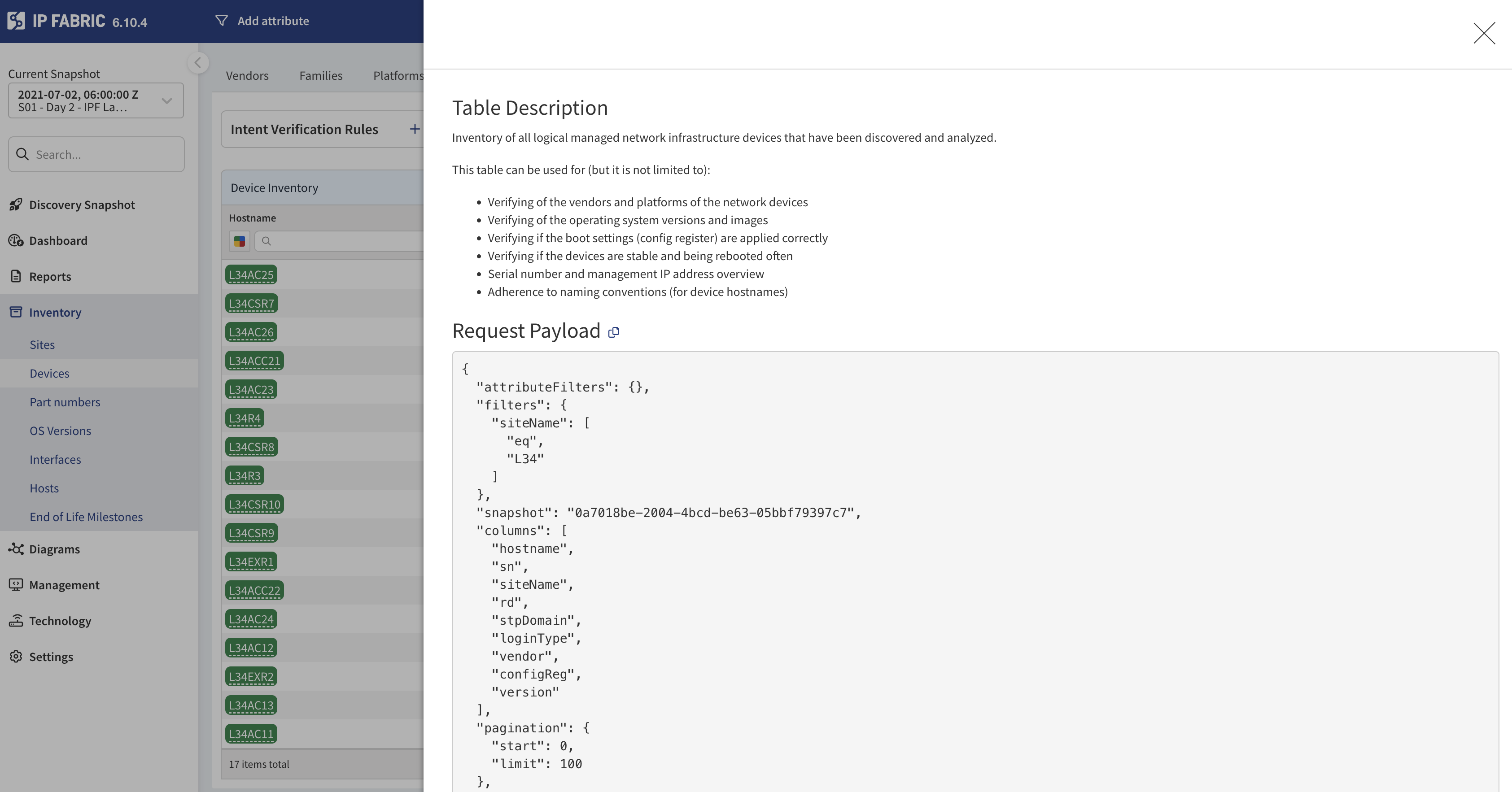
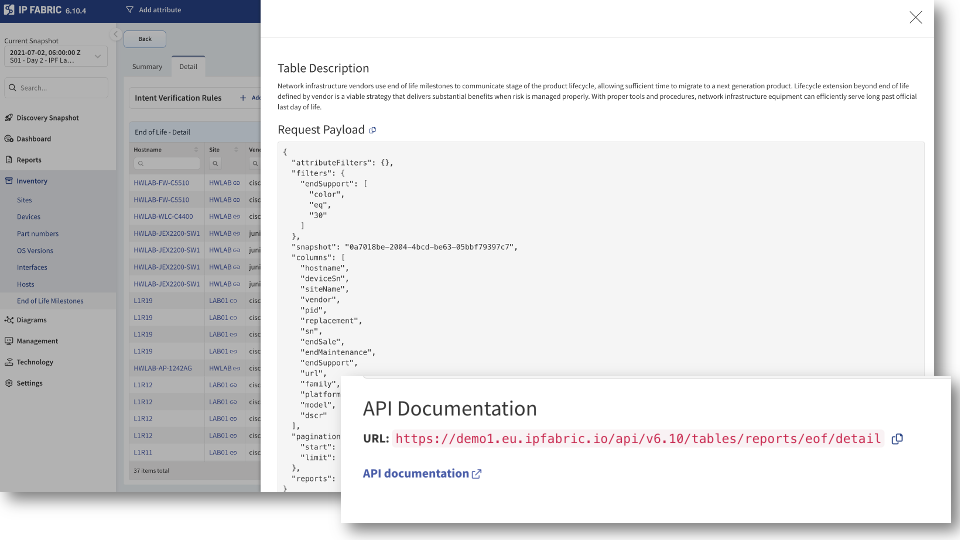
Each table comes with an API payload, enabling you to automate data queries directly from the platform. The API section shows you the correct URL, method, and payload required to run a query.
When you add or remove filters in the platform, the API payload updates accordingly, allowing you to customize and refine your data extraction.
Inventory> ⋯ > Table Description

For deeper insights, such as specific technologies or configurations discovered on a device (e.g., VLANs or routing protocols), you can go beyond the summary tables to more advanced data views.
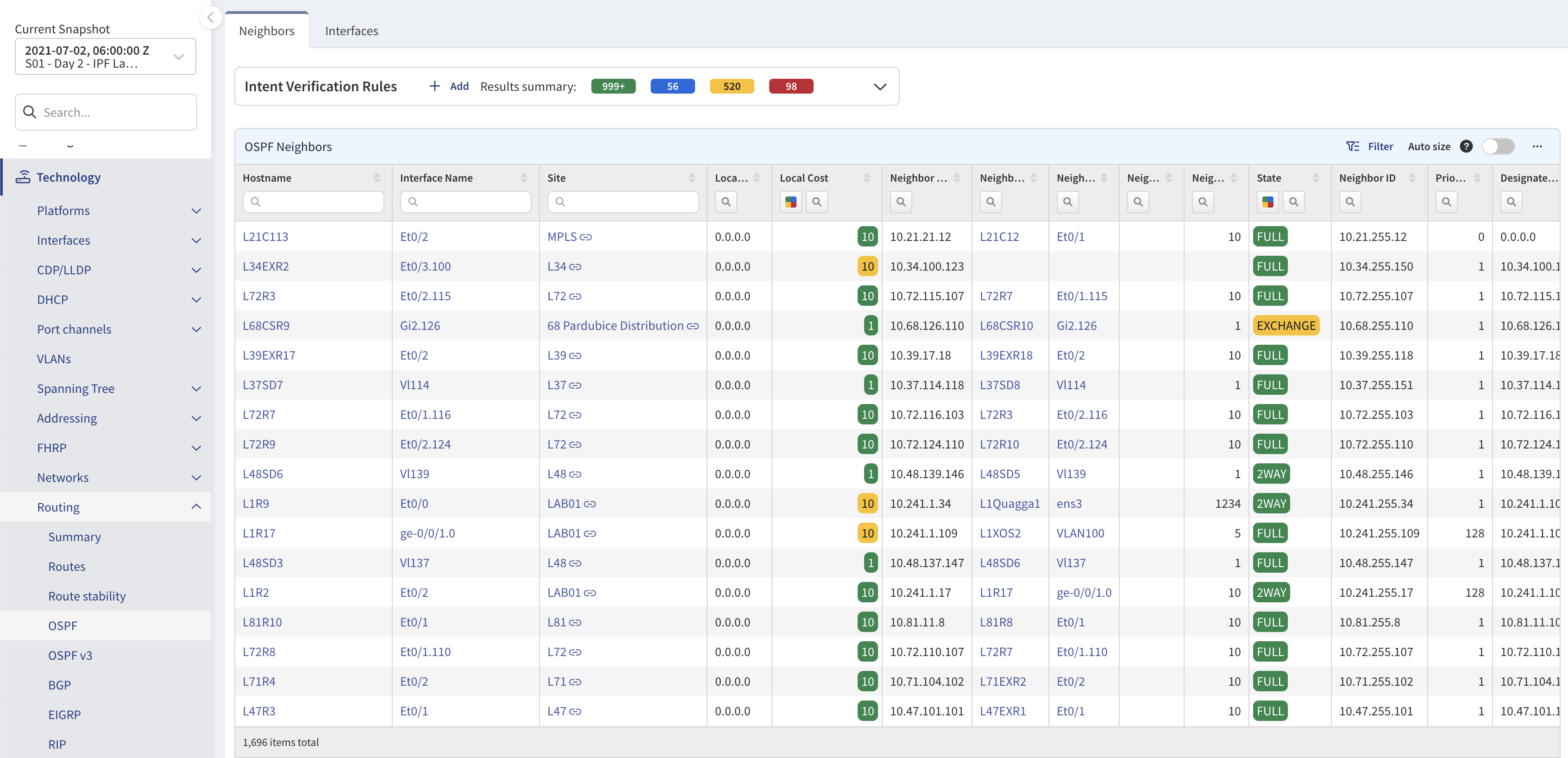
Navigate to technology-specific tables (e.g., routing, switching) to find configurations and details for various network components.
E.g. Technology > Routing > OSPF

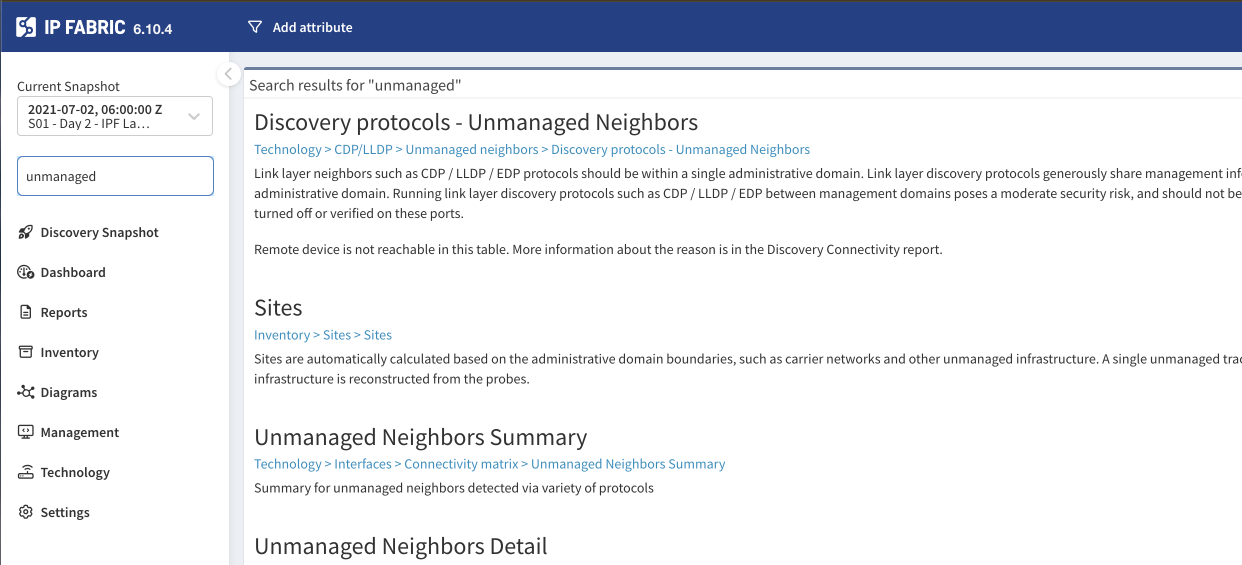
The platform’s menu system is extensive, but its search tool helps you quickly locate the right table or information. By typing a keyword, you can directly access detailed data about network devices.

Using technology tables, the IP Fabric platform makes analyzing network discovery data straightforward, efficient, and highly customizable.This structured format breaks down the guide into clear, easy-to-follow sections while emphasizing key functionalities and usability features of tables in IP Fabric.
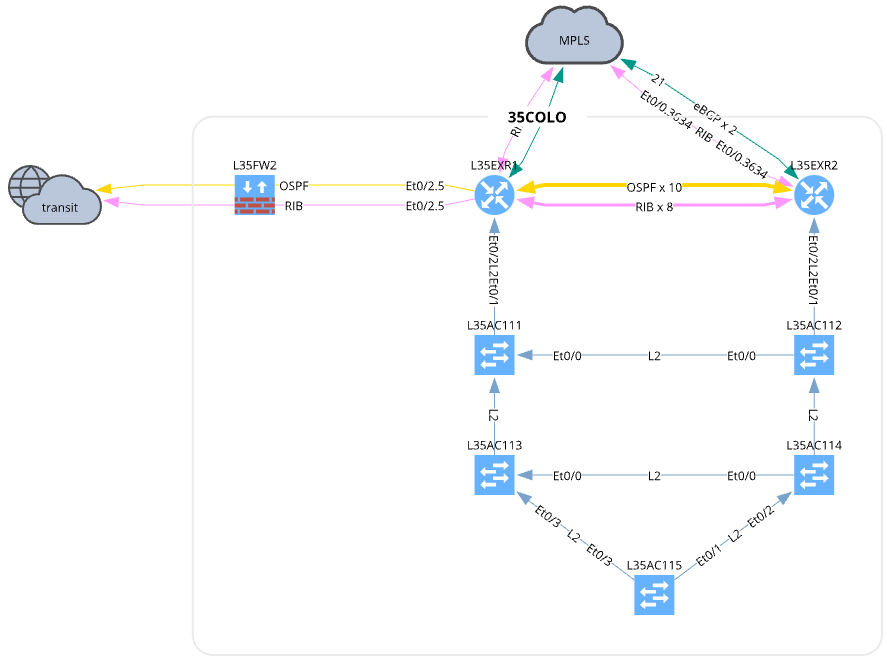
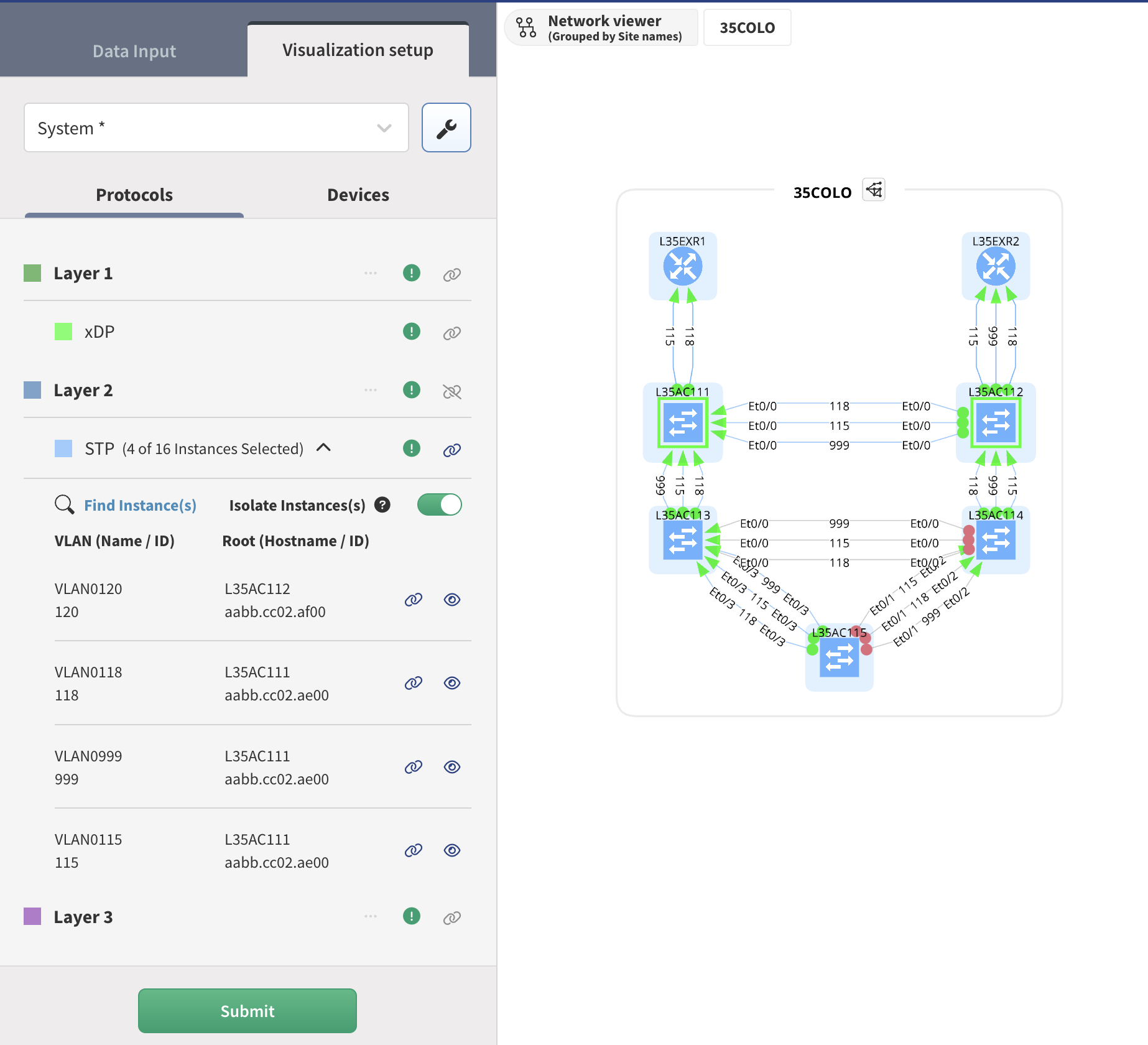
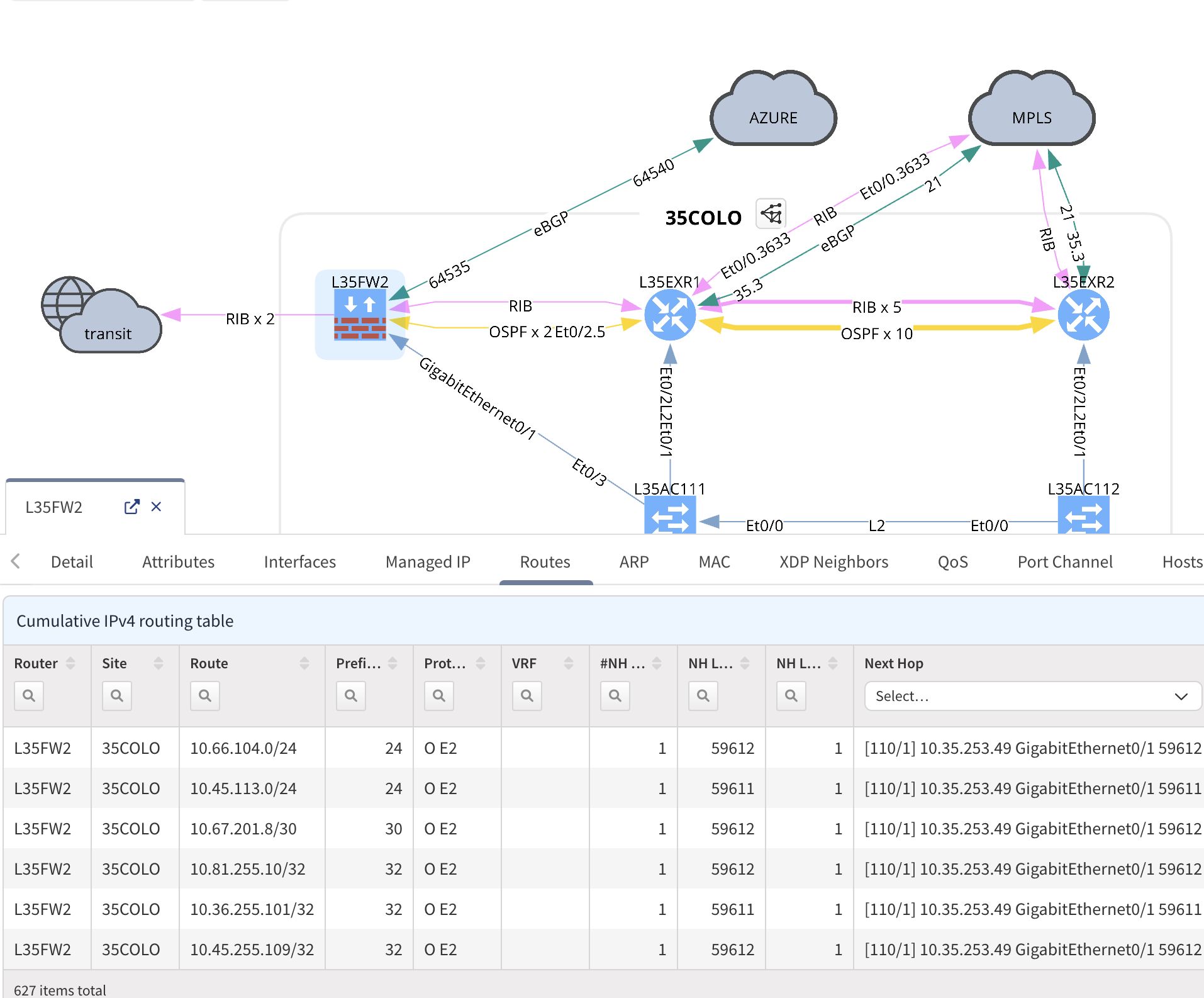
IP Fabric automatically generates flexible, detailed network map topologies, or diagrams, with every point in time snapshot taken. Static diagrams require constant manual updates, and frankly, are usually out-of-date by the time they are complete, leading to an endless cycle of maintenance with gaps in visibility and potentially dangerous oversights.
You may need multiple static diagrams to show the same part of the network for different layers, where IP Fabric offers all of your network in a single view.
Let’s walk through how to access and use network diagrams in the IP Fabric platform to visualize your network and enhance your analysis of its topology.
We’ll understand how to:
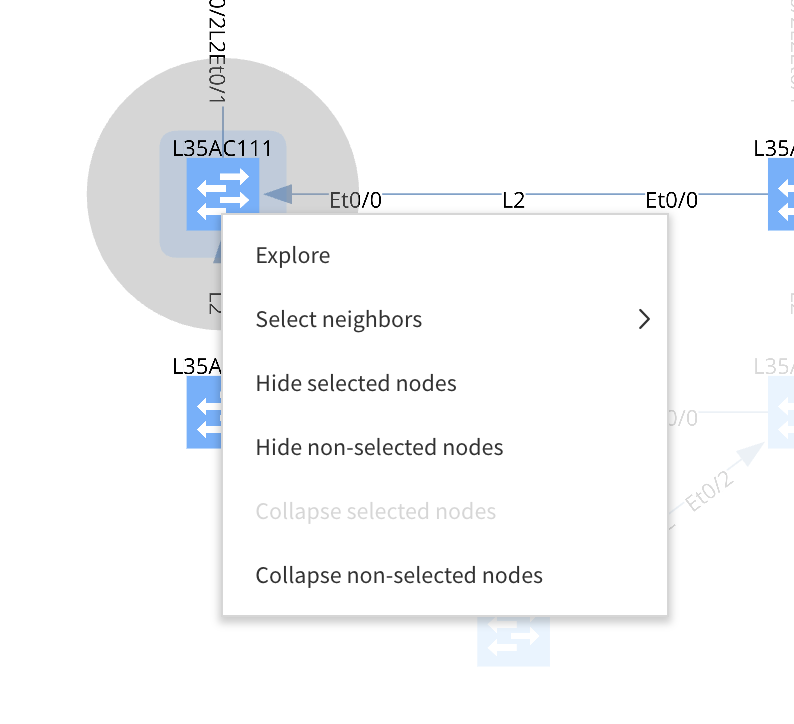
Maximizing Real Estate: If you have a large topology, you can hide unnecessary parts of the interface. For example, use the Network Viewer option to hide the middle section and the menu bar to maximize your diagram view. This will help you better visualize complex topologies.


IP Fabric makes network diagrams a powerful and dynamic way to visualize and manage your network infrastructure.
IP Fabric’s automatically generated reports translate complex network data into clear, consumable information, allowing non-engineering teams like business leaders, security, and operations to understand how the network impacts their work.
This time-saving automation eliminated engineer time spent manually collating data by creating instant reports with no manual input, improving efficiency and removing bottlenecks between teams.
These reports provide summarized information and perceived risks, helping organizations make informed decisions by keeping the network’s state up-to-date and compliant.
In dynamic, enterprise-scale networks, regular automated reports are crucial for maintaining operational awareness and avoiding outdated or incomplete network understanding.
We’ll understand how to:
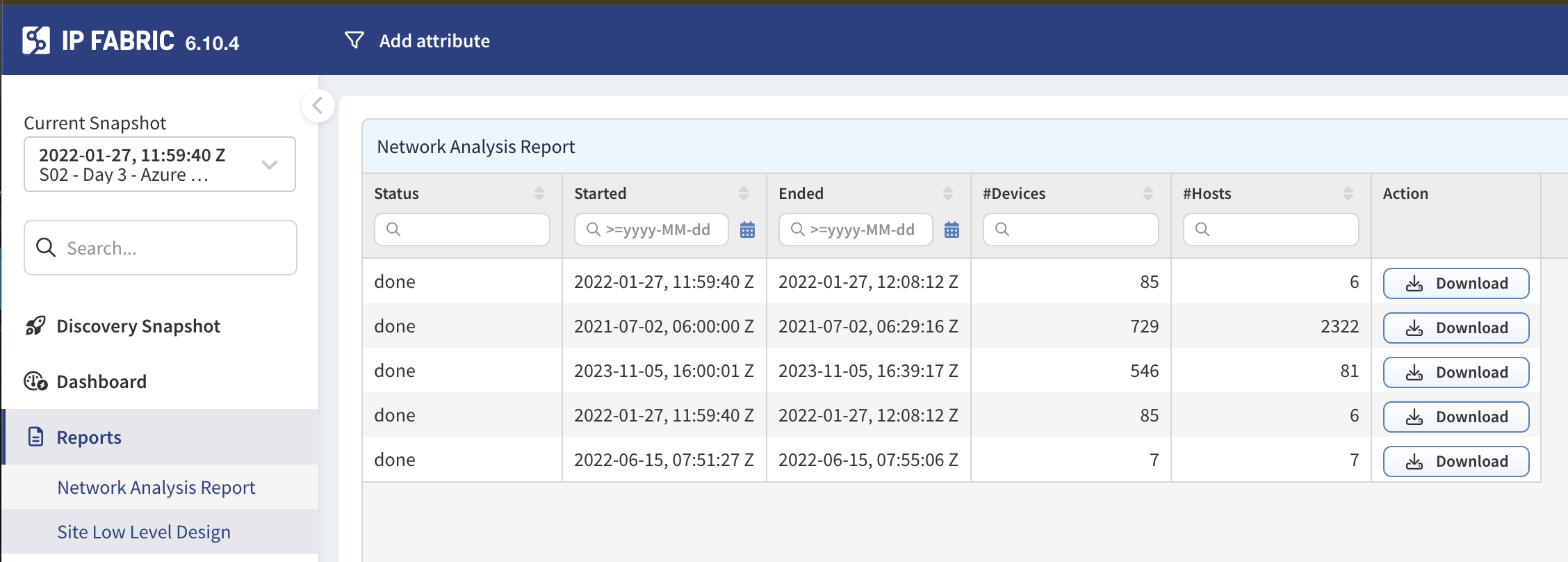
Click Reports under the navigation menu options; based on your needs, select either Network Analysis Reports or Low-level Design Documentation.
Click the Download button to access your report in .docx format.
Use various sharing options to send the URL, csv file, or API payload to the relevant recipient or adjacent tooling.

IP Fabric surfaces network intelligence that is vital for effective network planning and budgeting. By using IP Fabric, teams can efficiently manage device lifecycles, reduce security risks, and streamline audits.
Put into action:
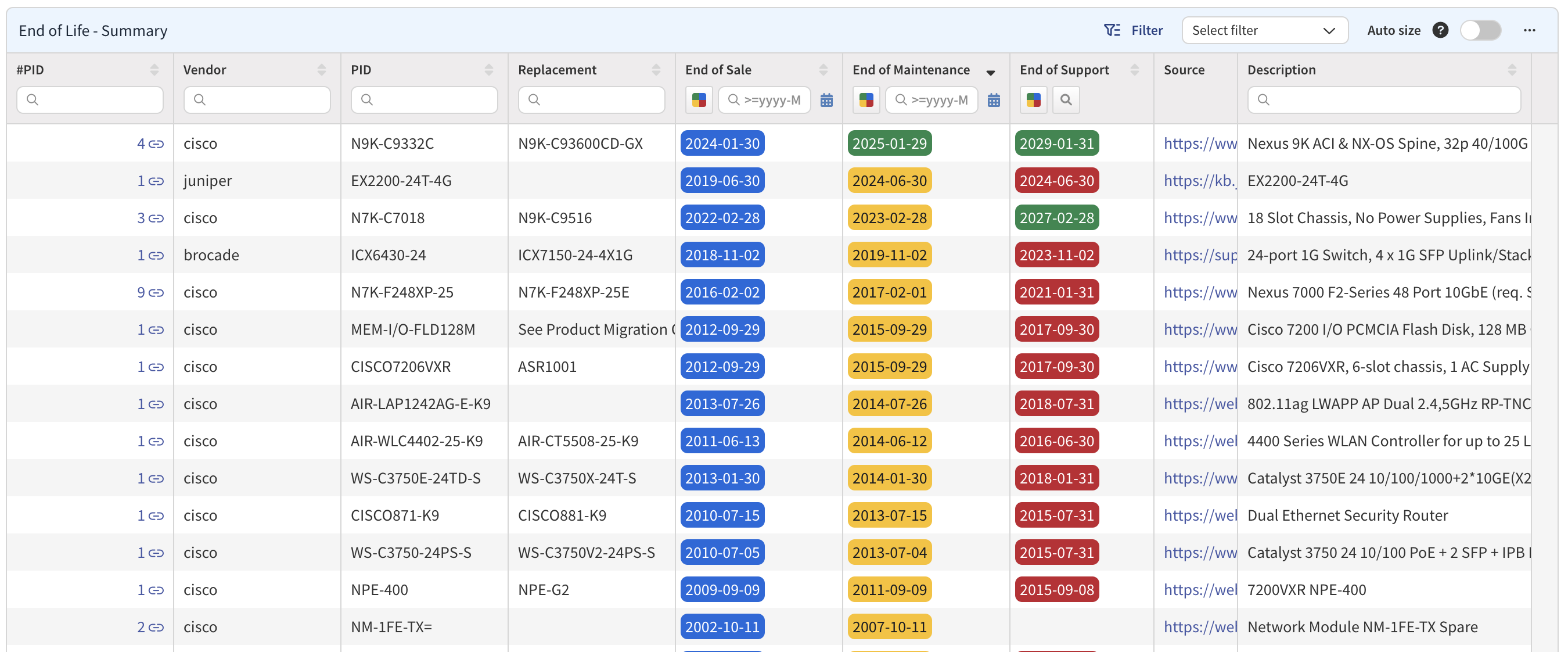
IP Fabric automates device lifecycle management by gathering hardware and software data across the network, eliminating manual cross-checking with vendor portals. This data includes make, model, serial numbers, and vendor-suggested replacements.
Engineers can identify devices nearing End-of-Life (EoL) and schedule proactive replacements, reducing vulnerabilities caused by outdated devices.
Security teams can automatically verify device OS versions and proactively address vulnerabilities.
Export lifecycle data for audits and planning, empowering cross-team collaboration and informed decision-making.
(1) Simply go the Inventory tab and click End of Life Milestones
(2) Share this information as you need it:

In IP Fabric, a snapshot captures the state of a network at a specific moment, offering a detailed view of its configuration and changes over time. Unlike continuous scanning, snapshots preserve historical states, enabling users to compare past and present network conditions for compliance, troubleshooting, and training purposes.
This approach minimizes network load by storing data offline, allowing team members to explore network configurations without generating additional traffic. Snapshots also simplify change verification by providing a clear before-and-after comparison of network modifications, ensuring desired outcomes are met.
Let’s look at how to use snapshots:
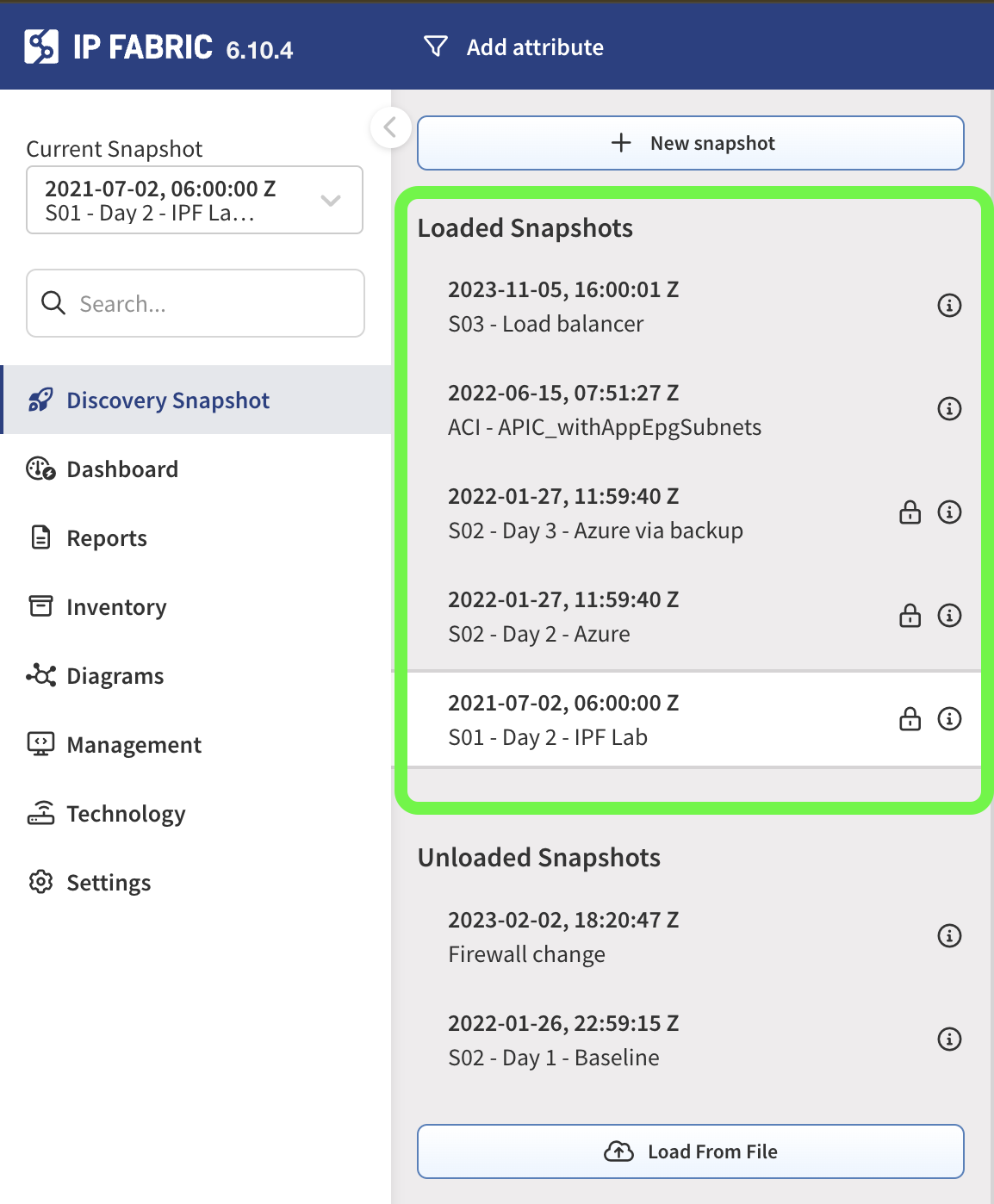
Up to 5 snapshots - each which contains a model of your network at a specific point in time - are loaded at a time. See them in your Discovery Snapshot tab:

You can switch between these 5 network snapshots at any time, to compare historical information, track state change, and perform analysis.
Unloading a snapshot will move network state information from RAM to HDD, creating room for a new one. You can download any snapshot to store externally and re-upload later. You may want to load previous discovery snapshots to do a historical comparison of your network.
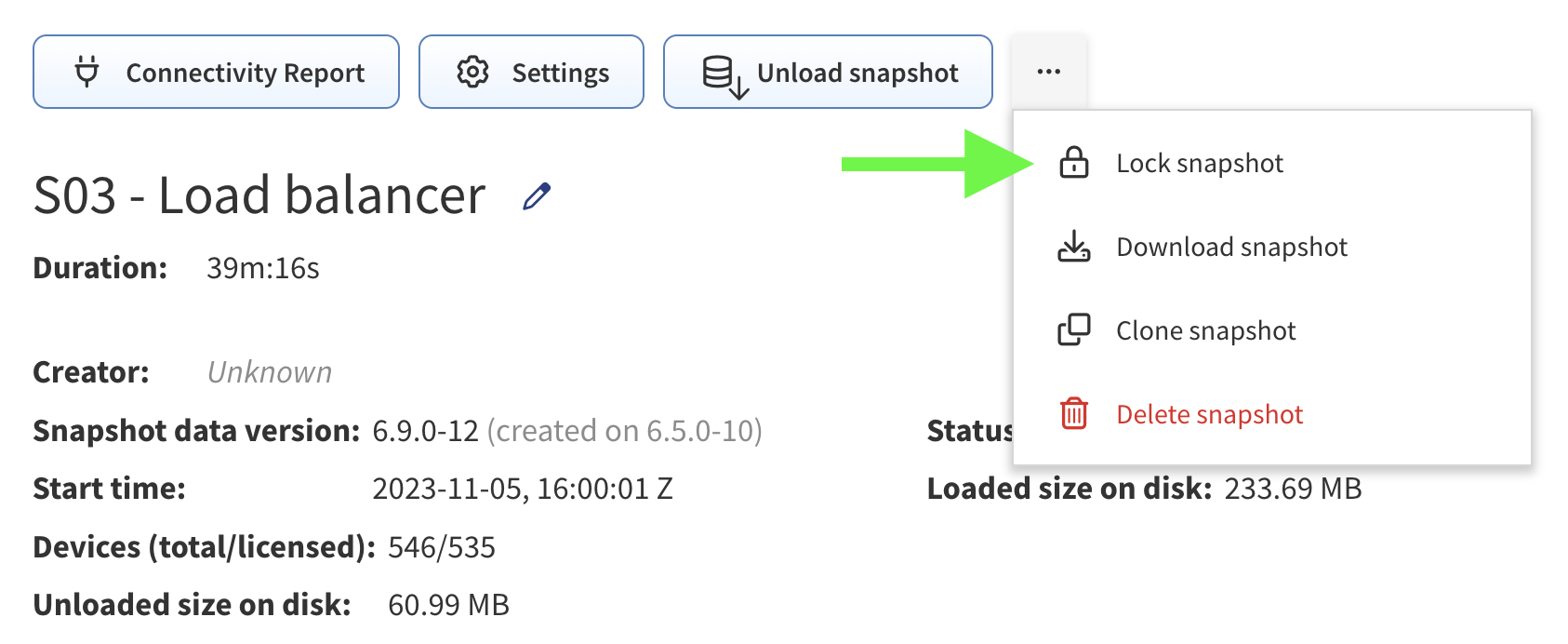
Often, users will lock a critical, comprehensive snapshot to be their network baseline. Locking a snapshot means it won’t be overwritten by scheduled or ad-hoc network discoveries. If no snapshots are locked, the oldest snapshot of the 5 will be automatically unloaded. Simply click as shown below to ensure the snapshot is preserved:

Locking a stable baseline, “known-good” model of your network is useful in an outage or emergency when you need to roll back changes fast.
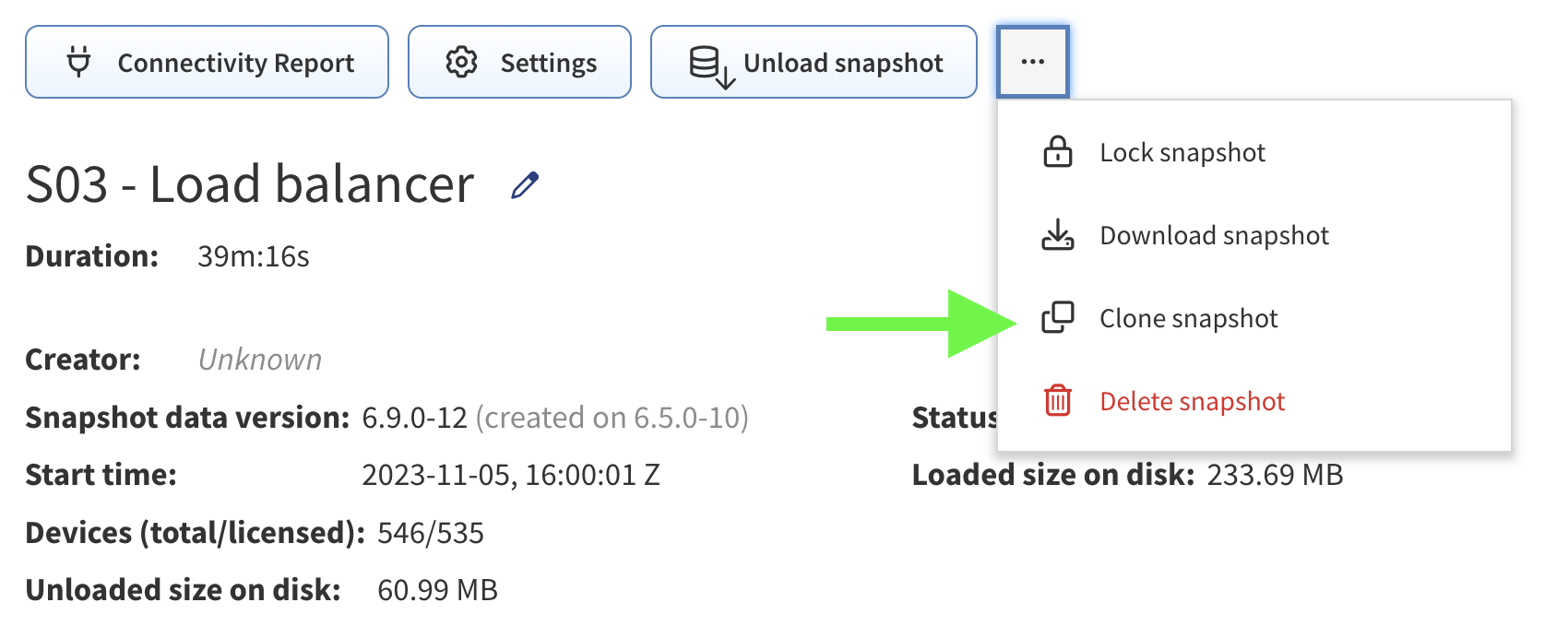
Click Clone Snapshot to create an exact copy of a discovered point in time network model:

You might clone a snapshot to rediscover or update a small number of devices or a partial section of the network within a snapshot, without losing the original settings and data. This avoids the need to do a full discovery, which depending on network size, could take time.
You can select specific devices to refresh Discovery Snapshot > Devices Management:

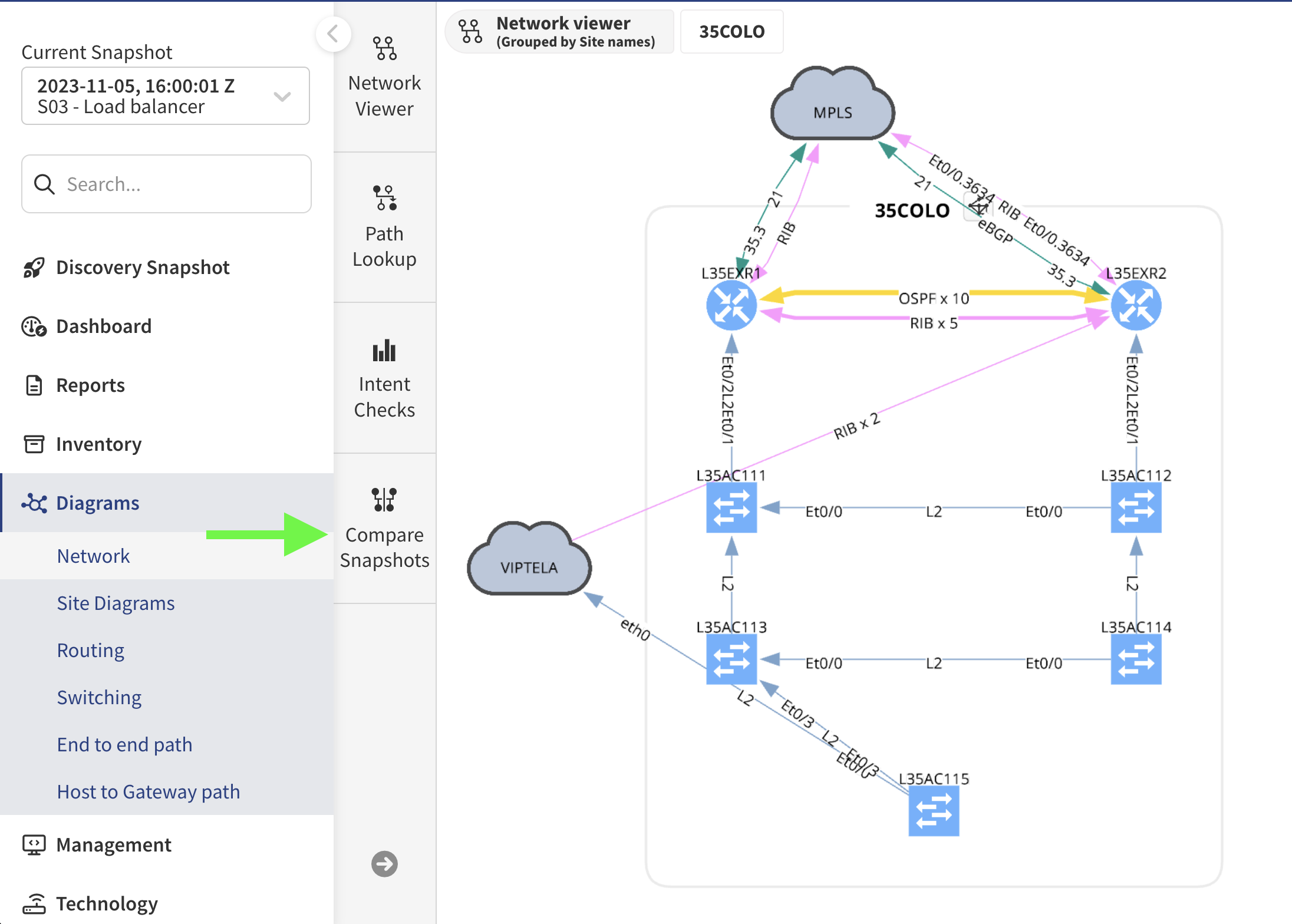
A massive benefit of snapshots is the ability to quickly compare your network to a previous state and answer “what’s changed” in seconds. From the Diagrams view, simply click Compare Snapshots:

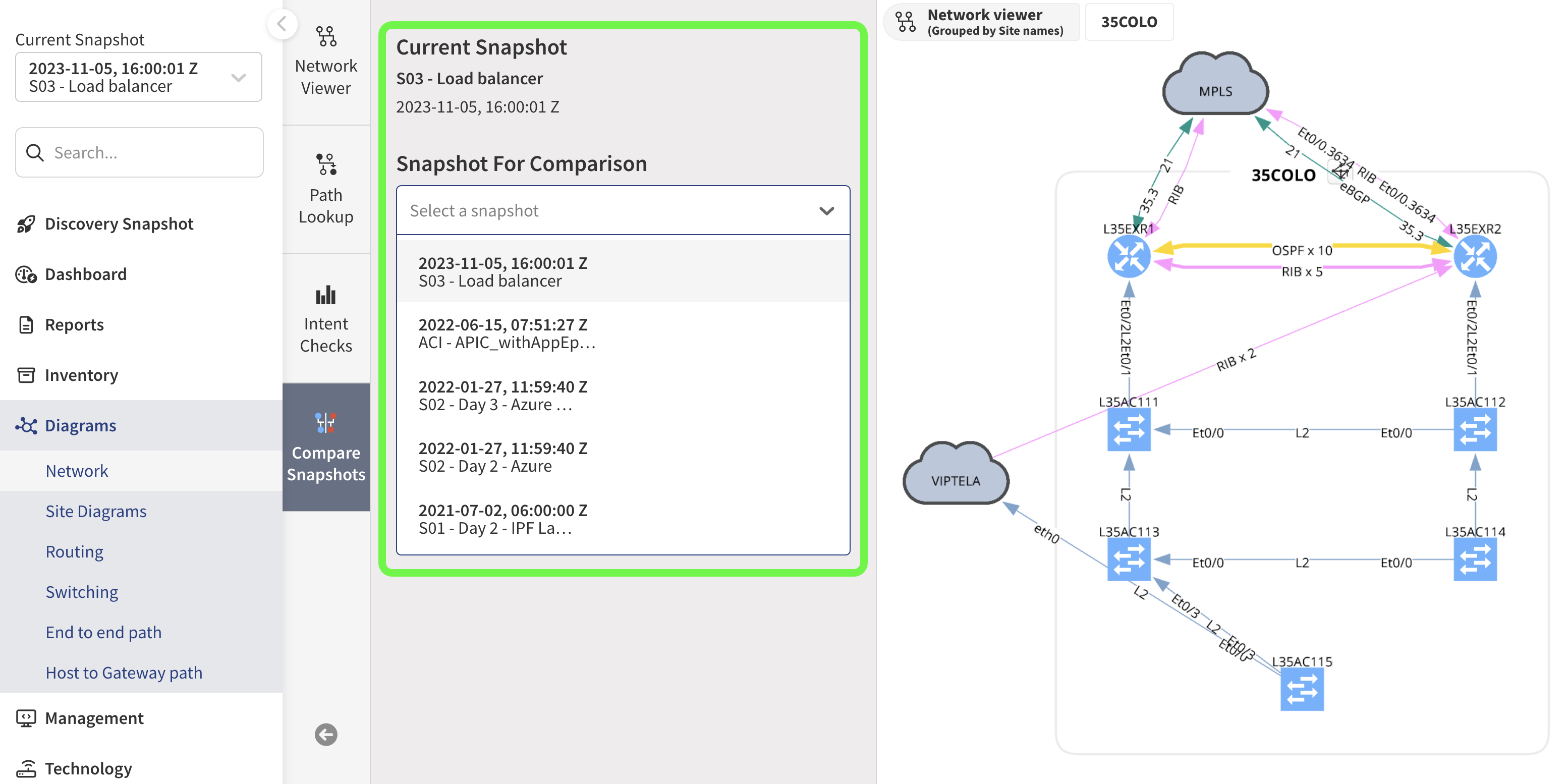
Select which snapshot to compare to your currently loaded snapshot:

See a clear comparison of prior and current network states (red represents what's been removed, green what's been added, and grey what stayed the same from snapshot to snapshot):

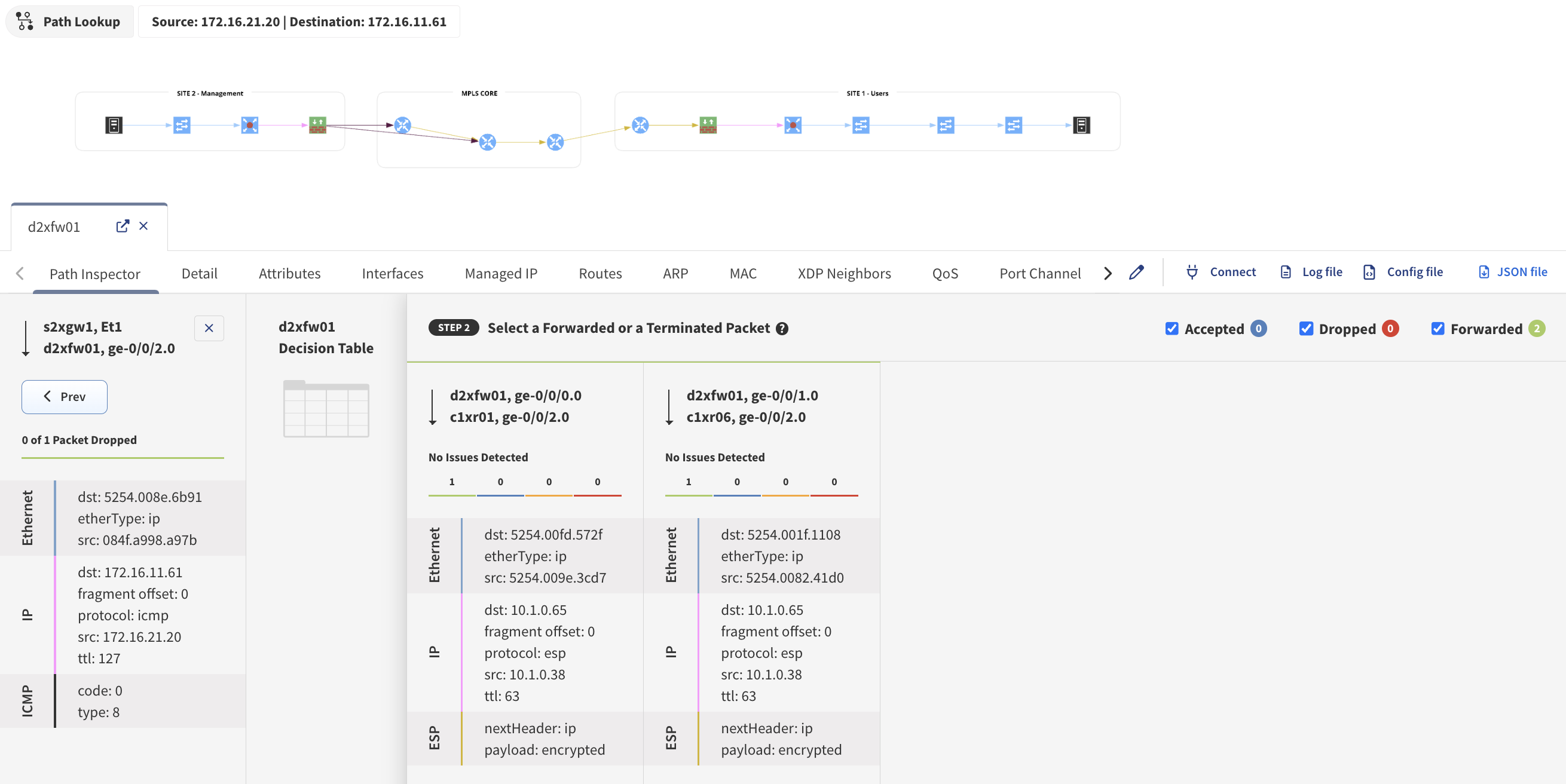
If you’re troubleshooting connectivity issues in a complex network, such as after a migration or a change, IP Fabric’s end to end path lookup feature can help you verify connectivity (is it truly a network problem?) and identify and isolate potential network issues (i.e. a firewall is blocking traffic that it shouldn’t be, or a lack of redundancy that will become a business continuity).
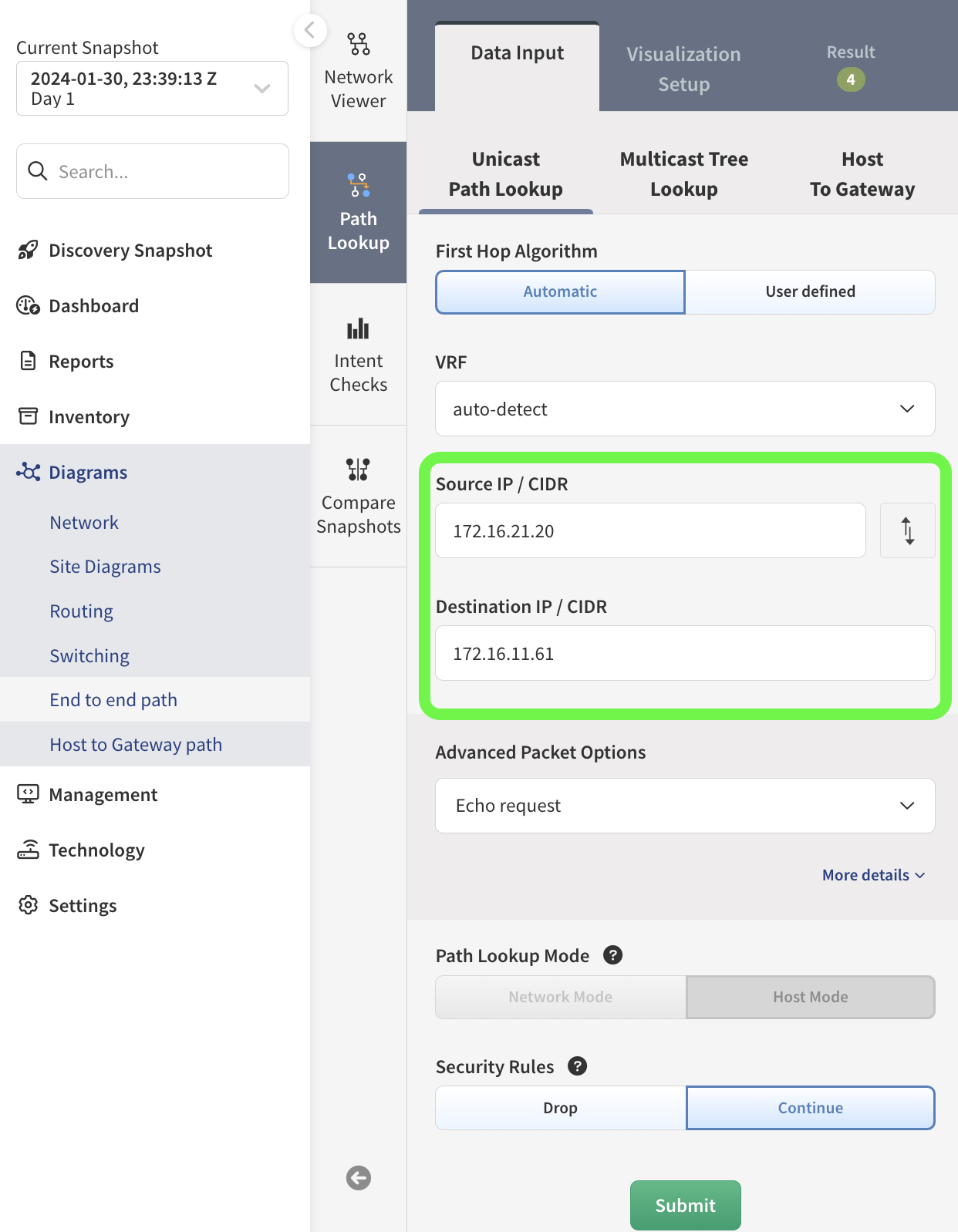
IP Fabric’s end to end path lookup function lets you understand how data is traversing your network from one endpoint to another, giving you the tools for a quick analysis.
Imagine a scenario where a user reports that a certain application (for example, a warehouse telemetry app) is not working after a migration or network change. In such cases, you’ll need to verify the network connectivity and check how the path between source and destination behaves across your network.
Access the network map in IP Fabric to get a visual overview of the affected site:
Once you've identified the relevant endpoint (e.g., a switch connected to the sensor or server), use the End to End Path Lookup feature in IP Fabric.

See the path visualization in IP Fabric:
For example, review the following in the path visualization:

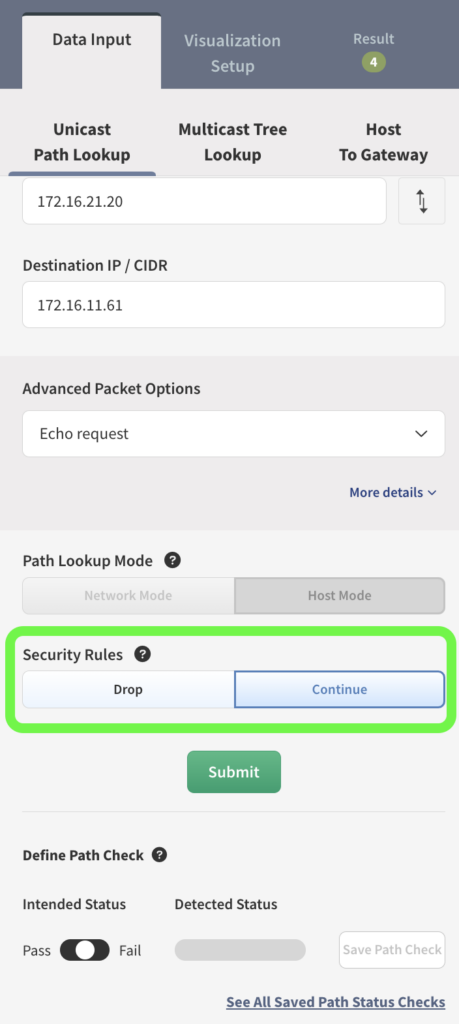
Test different traffic parameters to verify connectivity under different conditions. You can change the port to understand how traffic behaves on different ports or see what happens if you set traffic continue despite a security rule (an example of a "what-if" scenario).

This quick and accurate verification of end-to-end connectivity ensures that application flows are correctly routed and allowed by the network and security policies. This method saves time, particularly in large, complex networks with multiple firewalls and filtering devices involved.
IP Fabric provides a powerful way to assess an entire network infrastructure for compliance and operational assurance through intent verification rules.
Multi-vendor, multi-site network discovery creates a comprehensive snapshot with normalized data, no matter how diverse your network. This normalization is key - it allows IP Fabric to apply intent verification rules on top of this data, so you can quickly evaluate network state, configuration consistency, and adherence to standards or internal policies.
IP Fabric includes 150+ intent verification rules out of the box. These are based on decades of practical networking experience, and we’re always adding more.
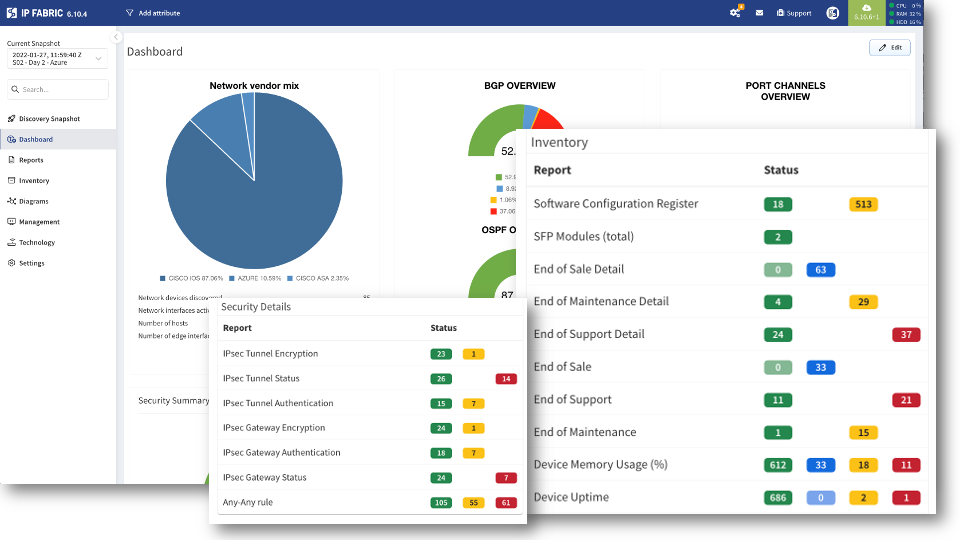
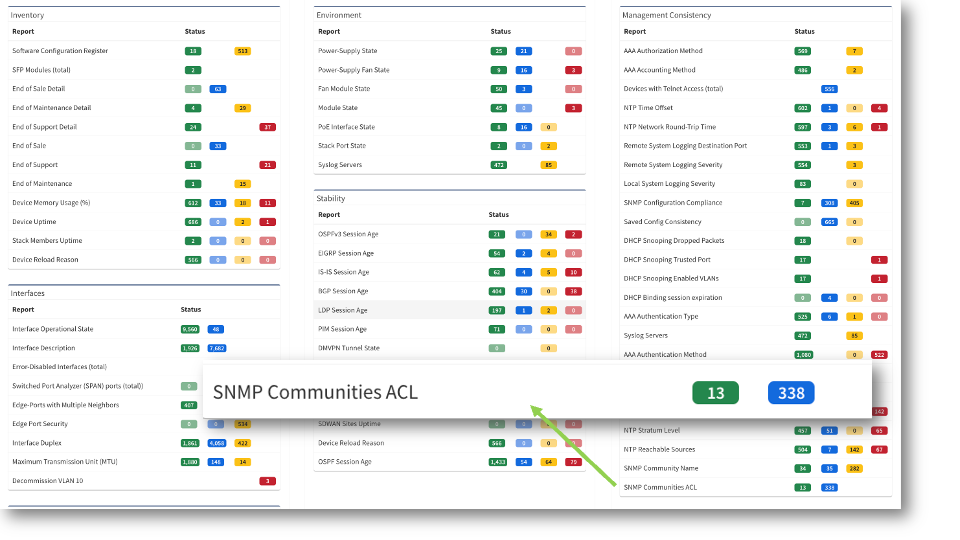
IP Fabric displays these intent verification checks on your Dashboard, categorized into areas such as security, inventory, and interfaces, giving you an overview of how well the network aligns with defined intent. From the Dashboard, you can see more detail by click through each alert color, which will take you through to the corresponding table data.

In the below example, you can quickly identify devices with high memory utilization:

Using intent verification checks, organizations can ensure network consistency, address compliance gaps, and monitor both configurational and operational states effectively. You can use intent checks to create your own network audit, which is run every time a snapshot is created.
Users can create their own intent verification rules for any aspect of the network, including routing protocols, switching domains, or management protocols.
Custom verifications help ensure compliance with internal security best practices or fill any gaps in the existing set of intent verification rules. The process for this is really simple, requires no specific scripting or product-specific skill, and it takes just minutes to add new rules.
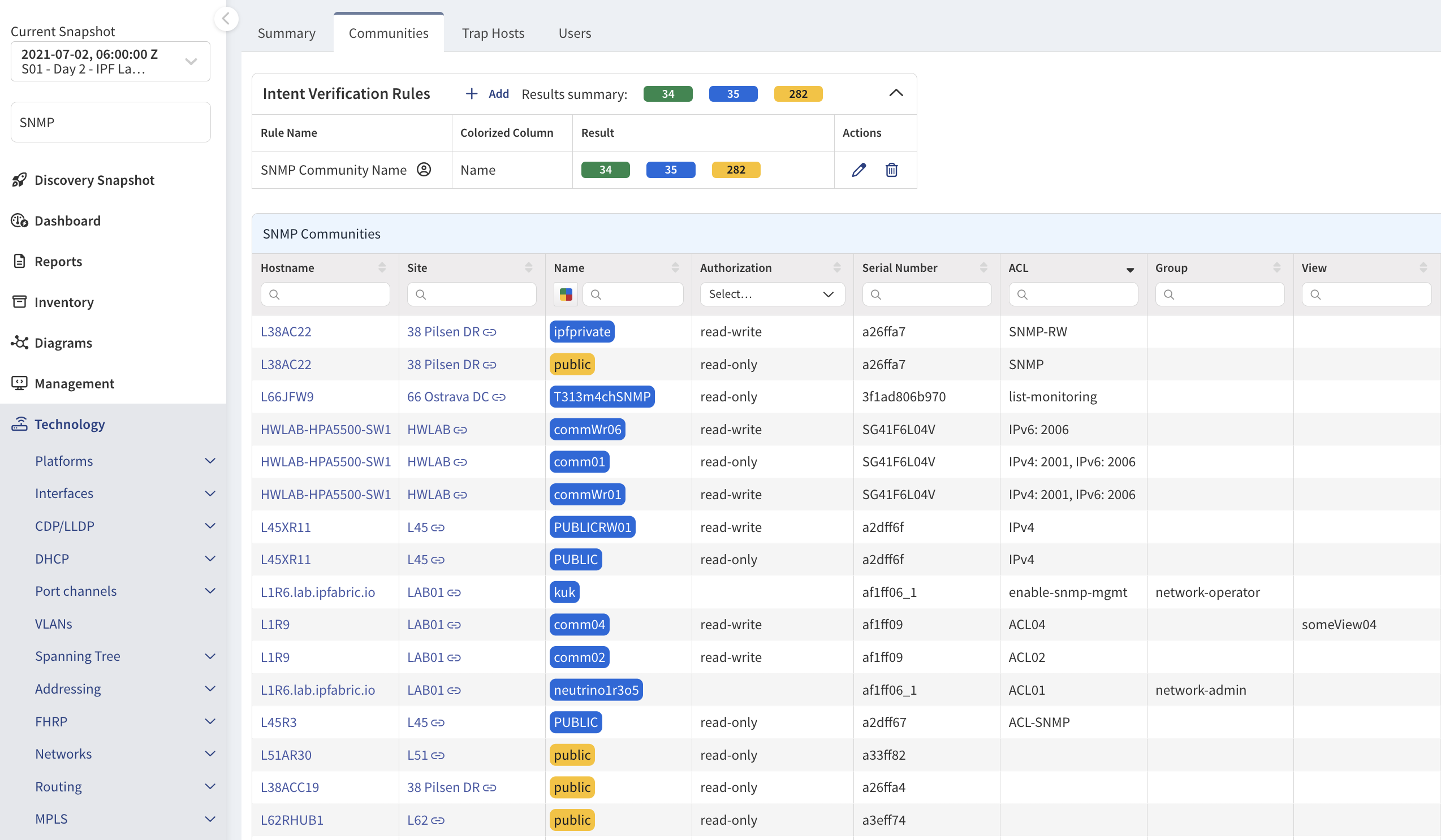
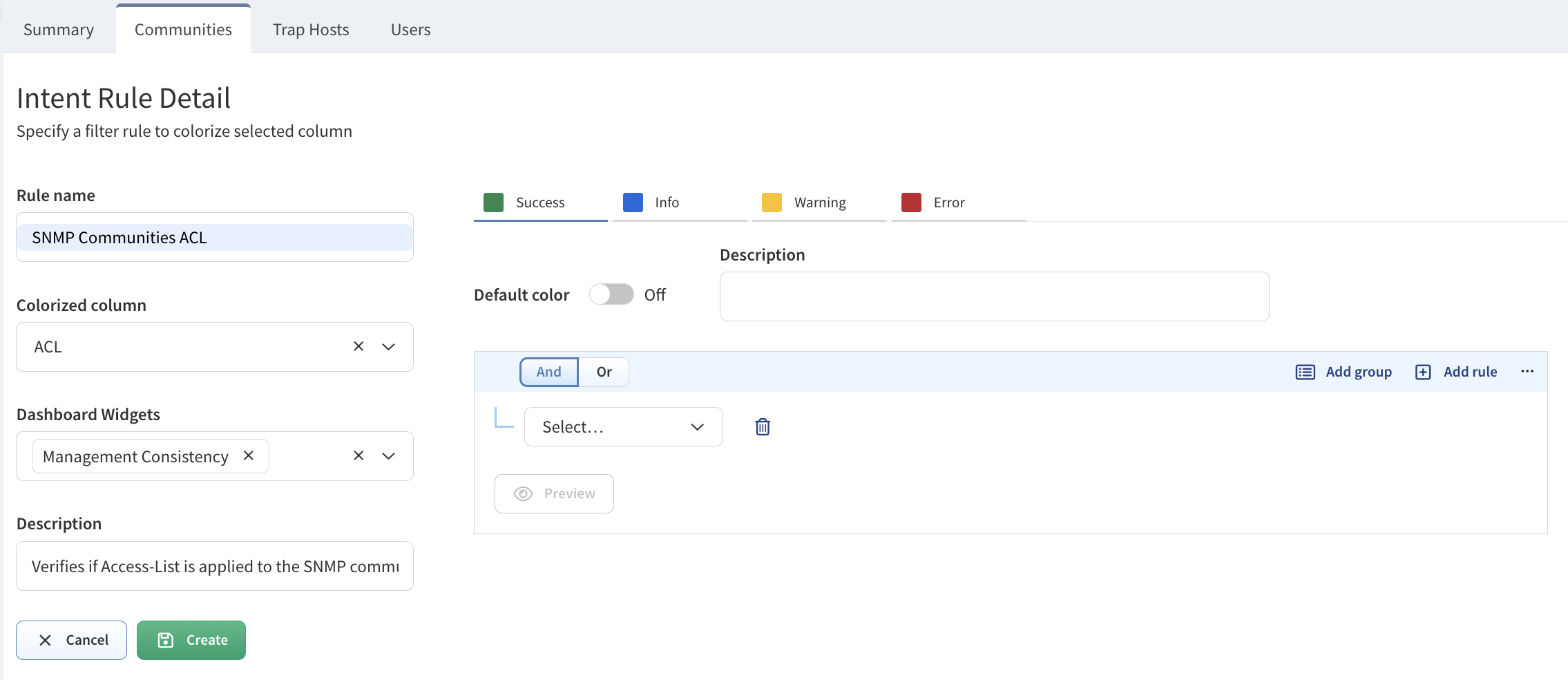
Let’s walk through an example - we’ll create a rule to highlight SNMP communities with Access-Lists (ACL) applied.

Fill in the required fields:
Example: SNMP Community ACL.
Example: Management Consistency.
Descriptions are important as they also appear in the Network Summary Document. So, you’d probably want to choose something that will be clear to teams that aren’t necessarily as hands-on with the network.
Example Description: Verifies if the Access-List is applied to the SNMP community.

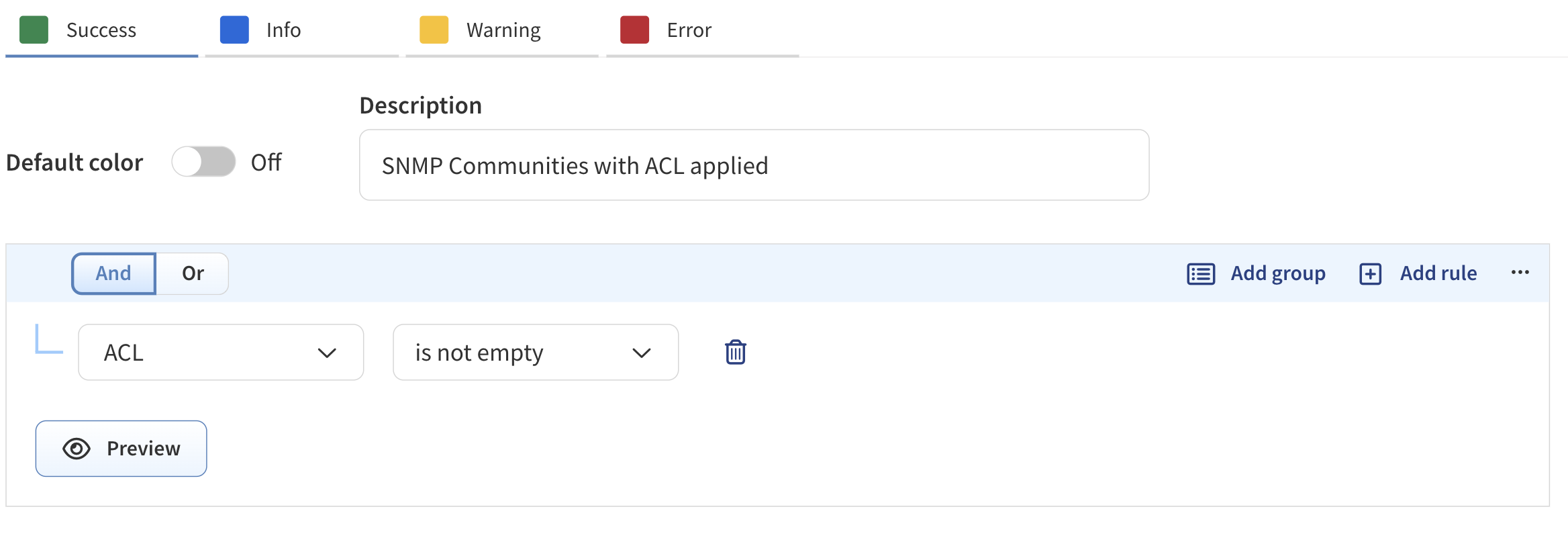
Define default and conditional filtering rules. There is an option for a configurable default color. For this example, we just want SNMP Communities that do have ACL lists applied to show up green, and those without to show up blue or this example, so we can simply focus on Success (green) and Info (blue), with no default option needed.
With green selected, add your description for devices to be highlighted or categorized green/Success.
Example: SNMP communities with ACL applied.
Then specify the rule, i.e. Show up green when ACL is not empty.

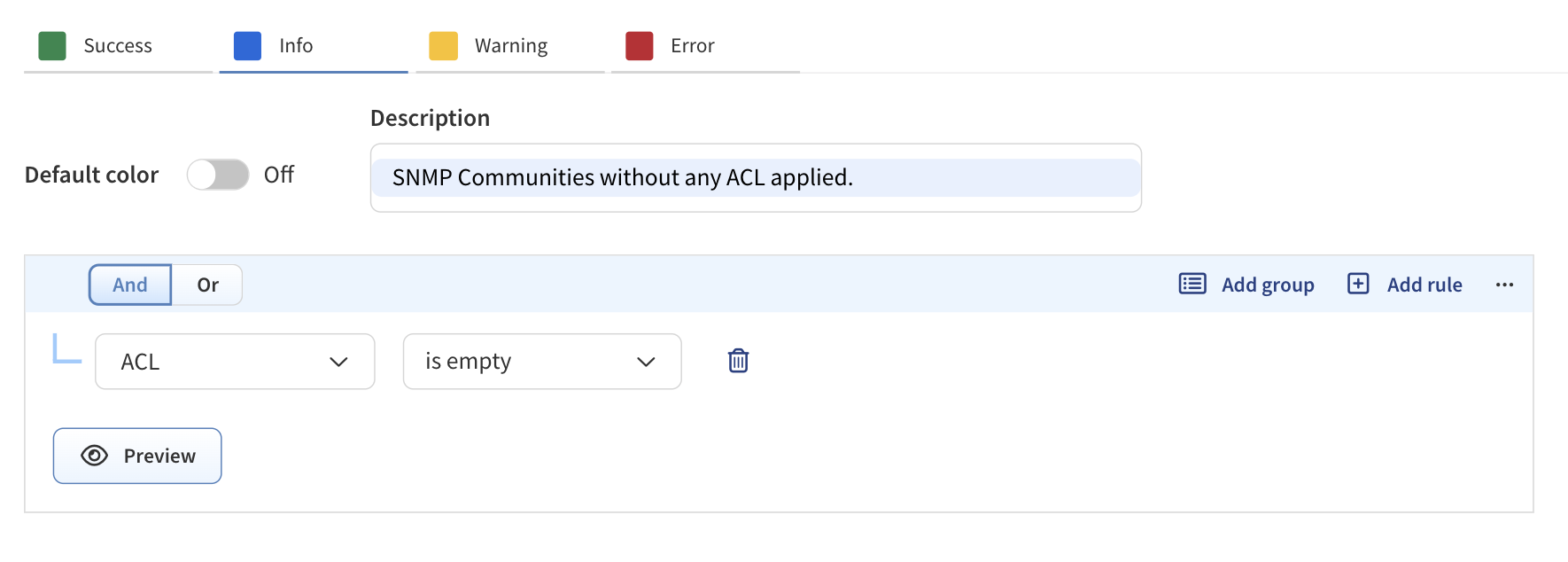
Next, create a condition to apply to SNMP Communities without an ACl. Let’s use blue to indicate that. Set the rule to check for records where the ACL field is empty and add your description. Example: Communities without any ACL applied.


IP Fabric’s Automated Infrastructure Assurance Platform addresses critical information gaps in existing network management tools, enhancing security and stability. Traditional tools often lack comprehensive data, leading to unmonitored devices and potential vulnerabilities. This comprehensive visibility replaces blind spots with certainty, enabling proactive management of network performance and security.
By integrating with existing tools, IP Fabric enriches their functionality with detailed network context. For instance…
IP Fabric’s vendor-neutral approach overcomes the limitations of siloed tools, providing a unified view of complex, multi-vendor networks.
It discovers all network, cloud, and security devices, along with their relationships and traffic paths, offering an interconnected understanding of the entire topology. This holistic perspective is crucial for maintaining network stability and security.
Our team works to build seamless technology integrations with tools we’ve seen become productivity accelerators for our customers. You can request an integration here: Integrations
Get more information:
These integrations allow for automatic population and validation of sources of truth, enriched monitoring dashboards, and precise network information in incident tickets, ensuring all tools operate with complete and accurate data.
All the data you see in IP Fabric can be accessed via API call. This is a boon for network automation projects, eliminating one of the major hurdles to effective automation - access to accurate, complete, and normalized network data.
IP Fabric Solution Architect, Justin Jeffery, has written up a fantastic guide through some practicalities and use cases around IP Fabric's API Programmability:
API Programmability Part 1: The Basics
API Programmability Part 2: Python
API Programmability Part 3: Webhooks
API Programmability Part 4: Diagramming
Everything available in IP Fabric, is available via the API. You can easily access the table description to use for API calls from different platforms or technologies.

For a deeper, and more technical look and API Programmability, take a look at Solution Architect Justin Jeffery’s blog series:
https://ipfabric.io/blog/api-programmability-part-1/
https://ipfabric.io/blog/api-programmability-python/
https://ipfabric.io/blog/api-programmability-part-3-webhooks/
https://ipfabric.io/blog/api-programmability-part-4-diagramming/