
 Blog
Imagine that you manage the network for a retailer with hundreds of stores across Europe and North America. On Monday morning, two requests land in your inbox.
The first request comes from your compliance team. A PCI-DSS audit is kicking off next month, and the auditor wants proof that every device in your Cardholder Data Environment (CDE) is operating according to regulatory policies.
The second request comes from your security team. A new operations team in EMEA needs access to your network data, but they only need to see EMEA devices.
Your first instinct is to go to your CMDB—your source of truth—to get an inventory of your devices. However, odds are that 20-40% of your CMDB can’t be trusted, which means it’s incredibly difficult to confidently answer questions like “What devices are in my CDE?” or “Who has access to what device?”
It would take a month or more to update your CMDB from scratch, so you do what most teams do: you export the inventory into a spreadsheet, and do the best with what you have. Within the spreadsheet, you tag each device by hand, knowing that the next time you discover your network, you’ll have to update them all again.
Aside from improving your CMDB accuracy, what you need is a way to attach business context directly to your discovery data. That context should persist every time you discover your network, and update itself as your network changes. This would change your workflow in two key ways:
- You wouldn’t have to manually add and maintain tags every time you run discovery.
- You’d have a fast, reliable way to understand and act on your network data.
IP Fabric recently introduced labels to help you achieve these outcomes. In this post, we’ll walk you through all the things you can do with labels, as well as how you can start using them to filter devices, enforce policies, and more.
What Are Labels?
A label is a tag that you can attach to any device or Layer 2 interface. After IP Fabric discovers your network, labels can help you describe what a given device or interface actually means to your business.
Each label is a name: value pair, such as region:EMEA, owner:network-team, or lifecycle:production. You can also create simple tags without a value, such as pci for any devices that fall into your PCI-DSS scope.
How Can You Use Labels?
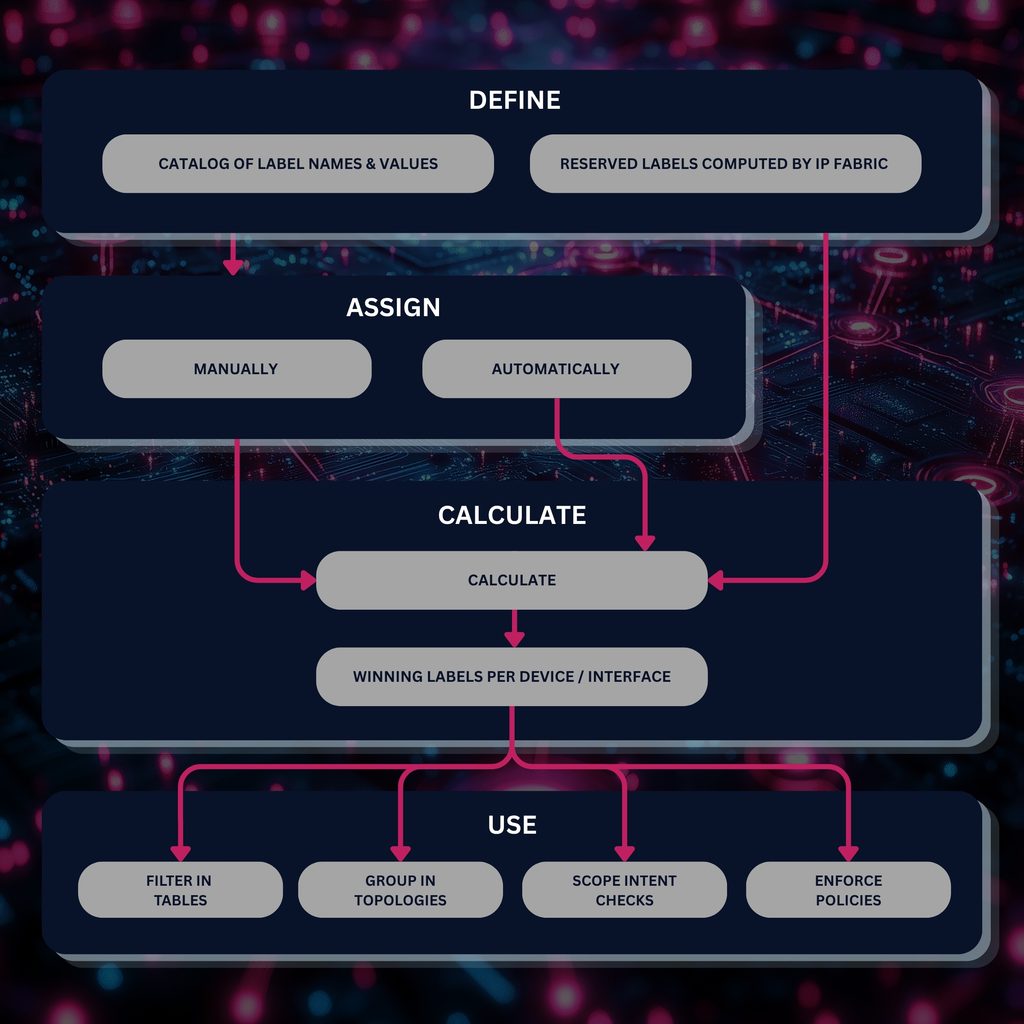
IP Fabric applies labels automatically across your entire environment, and they carry over every time you run network discovery. This gives you the flexibility and control to reliably:
- Visualize your data: Filter your tables and group your topologies by business context, such as by ownership, service, or lifecycle stage.
- Validate your intent: Scope intent checks to only the devices that carry a given label.
- Enforce security / regulatory policies: Use labels to control who can access what data in your organization, such as with Role-Based Access Control (RBAC) policies.
Together, these capabilities take manual tagging off your team’s plate and free up time for the work that keeps critical services running.
How Do You Create and Assign Labels?
There are three ways to create and assign labels in IP Fabric:
- Automatic rules, which apply labels based on device properties (e.g. site, region, domain, or routing domain) every time you run network discovery. For example, you could create a rule to label any device with a hostname that starts with
lon-. - API imports, which pull existing
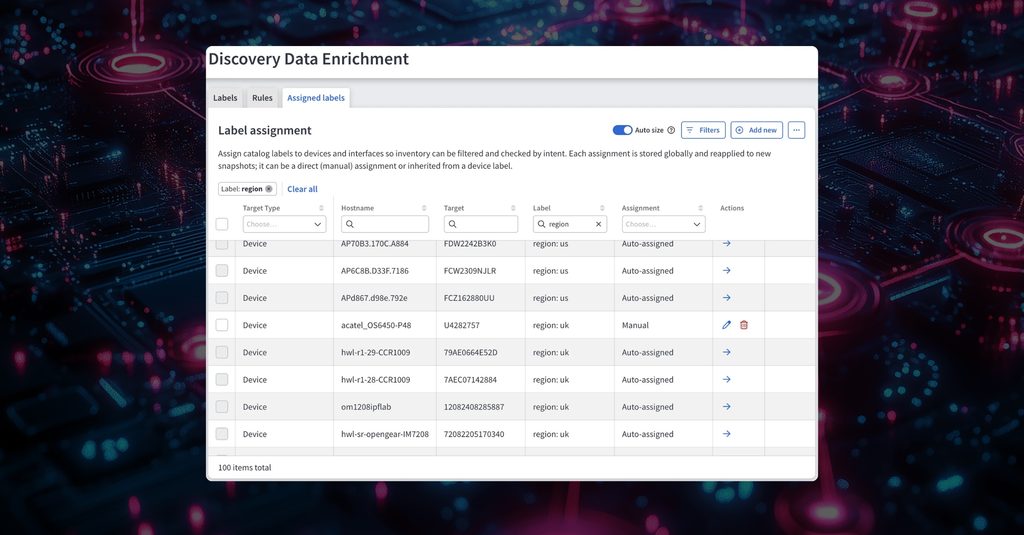
name:valuepairs from an external CMDB or spreadsheet, and help you to manage your labels programmatically. - Manual assignments, which you can complete in IP Fabric’s GUI or via API. These assignments take place immediately, starting in your current snapshot.
Every time you assign a label, IP Fabric records whether the label came from a manual assignment, an automatic rule, or inheritance. It also lists who last changed each rule, and when.
How Do You Filter By Labels?
Labels help you to slice through your discovery data, so you see only what’s relevant to your specific use case.
Every technology table in IP Fabric has a column dedicated to labels, which you can use to filter all of your devices and interfaces. Narrow down your results by adding one or more of the following operators:
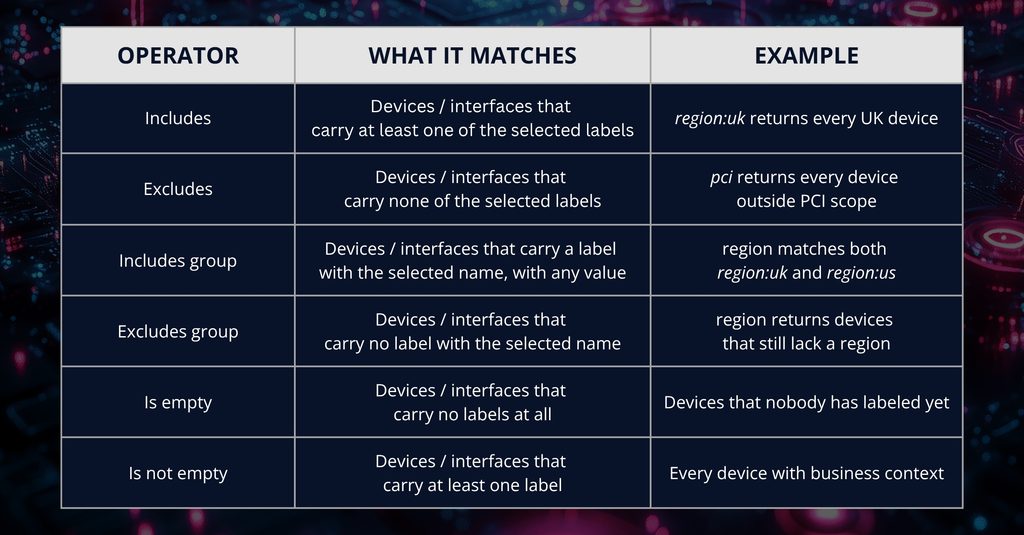
Remember the PCI audit example from earlier? In this case we could go to IP Fabric’s device table and add a filter for “includes pci.” That way, you can see a list of all your in-scope devices in seconds.
How Do You Enforce Policies Using Labels?
Filters help you see the network through a business lens. Policies help you act on what you see. IP Fabric gives you the option to use labels for policies in the form of:
Scoped Intent Checks
Run intent checks only against devices that carry a given label. In our PCI-DSS example, you could limit a given intent check to only the devices that carry the pci label, and export the results of that check as proof of compliance.
RBAC & Access Policy Enforcement
Restrict what a given user or team can see in IP Fabric based on labels. In our EMEA example, we could write a policy that says “a role may see devices and interfaces that match the region: EMEA condition, and that carry a lifecycle value.”
Here’s a closer look at what that policy would look like:
{
"version": 1,
"match": "all",
"terms": [
{ "label": "region", "op": "in", "values": ["EMEA"] },
{ "label": "lifecycle", "op": "exists" }
]
}
What Are The Benefits of Using Labels?
Network teams need to be able to organize their devices and interfaces by business context, and control who sees what. That means they need to be able to quickly understand whether a device is in production, which region it serves, and who owns it. When network teams are able to do this, it pays off in three key ways:
- Accelerate compliance audits by scoping intent checks to relevant parts of your estate, and by exporting evidence that’s grouped by label.
- Review change requests more quickly by filtering out unrelated devices and interfaces.
- Lower operational costs by automatically applying labels and centralizing policy management.
All three of these benefits ladder up to one unified goal: delivering critical services as reliably and efficiently as possible. When you can prove compliance, de-risk changes, and lower costs at scale, it ensures that services stay up and running, and that your business is always protected.
Want to see labels in action? Try IP Fabric free for 30 days, or contact our team to request a personalized demo.
FAQs
Are Labels Different Than Device Attributes?
Yes. In IP Fabric, labels and device attributes exist side by side today. IP Fabric plans for labels to replace device attributes once labels support every workflow that device attributes cover.
In some cases, labels already reach further than device attributes. Device attributes apply only to devices, while labels apply to both devices and L2 interfaces. IP Fabric plans to extend labels to even more object types in the future.
Labels also add structure that free-form attributes lack. Unlike device attributes, every label name and its expected values live in a central catalog, which suggests names and values as soon as someone assigns a label. That helps your whole team stick to one naming convention, so you don’t end up with region:EU on one switch and region:Europe on the next. Every assignment also records its source (manual, rule, or inheritance), so you can trace and audit any label back to where it came from.
Do Label Changes Rewrite My Existing Snapshots?
It depends. Manual assignments take effect immediately in the current snapshot, while automated rule changes are calculated only when you run network discovery.
What Happens When a Device Gets the Same Label From Two Sources?
IP Fabric follows a clear order of precedence. Manual assignments win over auto-assigned labels, and auto-assigned labels win over inherited ones.
What Naming Rules Apply to Labels?
A label name can run up to 64 characters and may contain letters, digits, hyphens, and underscores. A value can run up to 128 characters and cannot contain a colon. Learn more about parameters for labels in our documentation.